AI Parent-Child Linkage Guide
User Guide
BriefSpec
Introduction
AI Parent-Child Linkage helps you connect unmapped backlog requirements to their parent requirements within a project. BriefSpec uses AI to analyze requirement text, group related items, and suggest which parent each unmapped requirement should belong to.
The feature is designed for implementation teams who need to build hierarchy linkages efficiently after discovery workshops, transcript imports, or other sources that create many child-level requirements. AI suggestions are always presented for your review. Parent-child relationships are updated in the backlog only when you accept a mapping.
This guide explains how to run AI Parent-Child Linkage from the project Backlog, review the generated mapping results, and apply accepted linkages to your requirements.
Accessing AI Parent-Child Linkage
To use AI Parent-Child Linkage, open the project and go to the Backlog tab.
In the Backlog toolbar, click the AI Generated Parent Child Linkage button (sparkle icon).
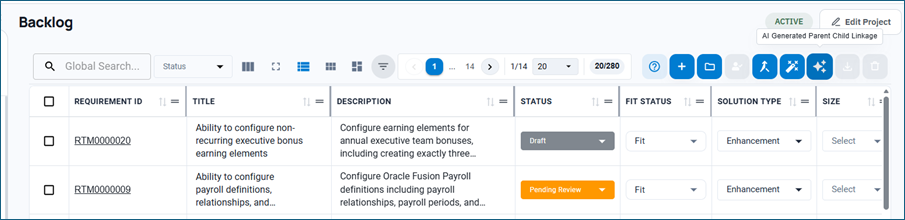
This opens the AI Parent-Child Linkage panel.
Note that you can always manually update the Hierarchy field for a requirement and set it to Parent or Child with its corresponding Parent.
Before you can run an analysis:
- Your role must have privilege backlog-ai-parent-child-linkage (Read & Edit) to use AI Parent-Child Linkage.
- AI-powered features must be enabled for your tenant.
- The project must not be in Draft status.
Your tenant plan must include ai_parent_child_mapping (otherwise the toolbar shows an upgrade message).
If a parent-child linkage analysis is already running in the background for the project, the toolbar indicates that status. Clicking the button while a run is queued or running shows a progress toast — the panel does not reopen until the run completes. Reopen AI Parent-Child Linkage afterward to view the report (or use the email / deep link).
Which Requirements Are Eligible
AI Parent-Child Linkage compares unmapped requirements (requirements without a parent linkage) against available parent requirements in the same project.
Parent requirements and unmapped child requirements must belong to the same Pillar and Module/Epic to be paired for analysis. Requirements that do not have a matching pillar/epic combination in the selected scope are excluded.
Only requirements in eligible statuses are included in the analysis (Draft, Pending Review, Verified, and Rejected).
Selecting Scope
When the panel opens, the first step is to choose the pillar and module/epic scope for the analysis. Use Add scope to view and select existing Pillars and Epics in the project.
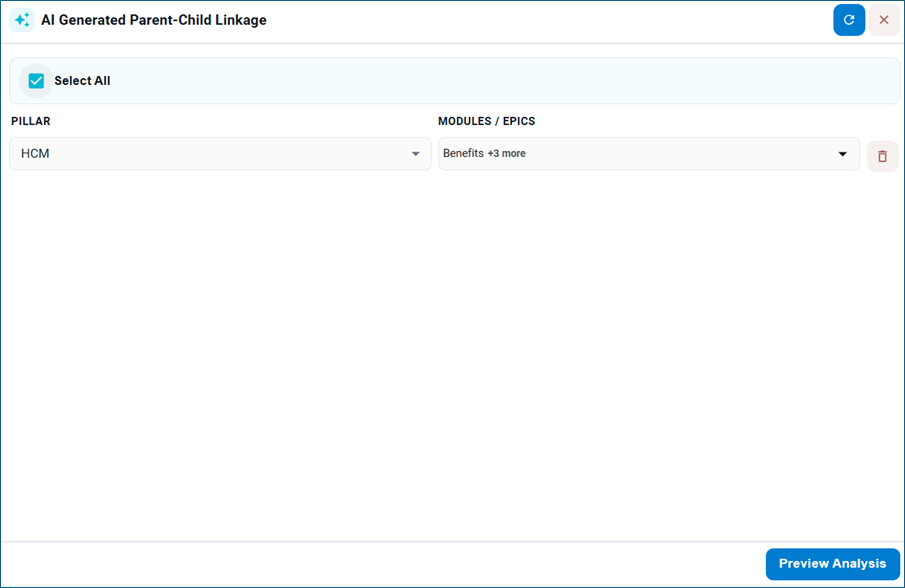
You can define scope in either of these ways:
- Select all – include every Pillar and Module/Epic combination available in the project backlog.
- Add scope manually – choose one or more Pillar and Module/Epic combinations using the scope rows.
For each scope row, select a Pillar and one or more Modules/Epics. Use Add scope to include additional pillar combinations. Remove a row with the delete icon if it is no longer needed.
When your scope selection is ready, click Preview Analysis to see which parent and unmapped requirements will be analyzed.
Preview and Start Analysis
The preview screen shows available parent requirements within your selected scope and summarizes how many unmapped requirements can be analyzed.
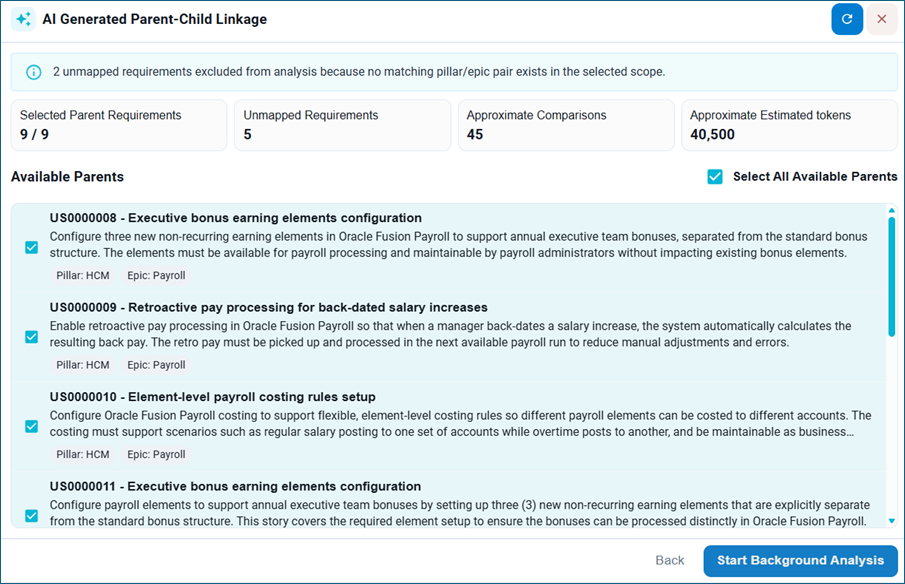
Review the summary counts at the top, including selected parent requirements, unmapped requirements, approximate comparisons, and estimated AI tokens for the run. If the estimated usage exceeds your remaining token allowance, BriefSpec blocks the start and shows a token-limit message until you free capacity or purchase more tokens (Settings > Manage Plan).
If some parents or unmapped requirements were excluded, an information message explains how many requirements were skipped because no matching pillar/epic pair exists in the selected scope.
Use the checkboxes to include or exclude individual parent requirements. Select All Available Parents selects every parent in the preview list. At least one parent must be selected before analysis can start.
When you are ready, click Start Background Analysis. BriefSpec submits the selected parents and matching unmapped requirements for AI assessment as a
Background job.
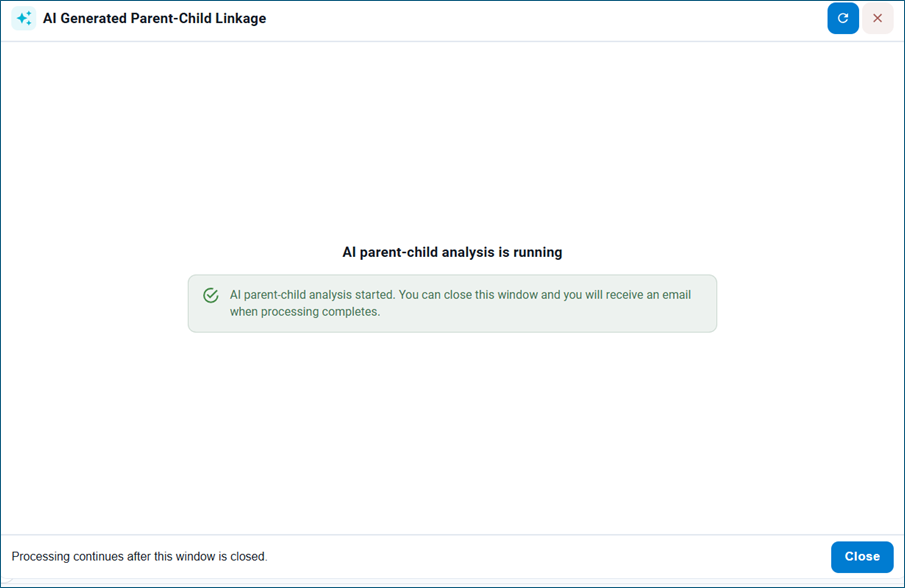
Analysis runs in the background. You may close the panel and continue other work. You will receive an email when processing completes. Opening the project from that notification (or with showReport=ai-parent-child on the project URL) can reopen the completed report. You can also Cancel Run while processing is active; the current chunk may finish before cancellation takes effect.
Reviewing the Analysis Report
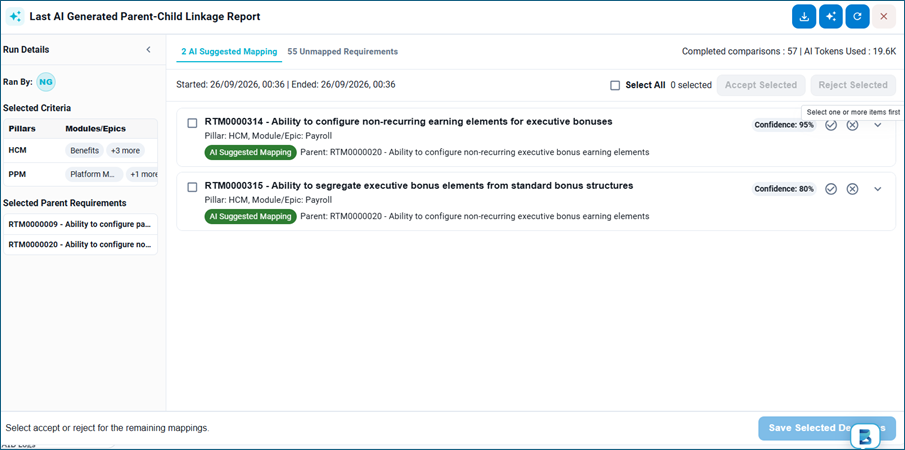
When the run completes, the panel shows the Last AI Generated Parent-Child Linkage Report.
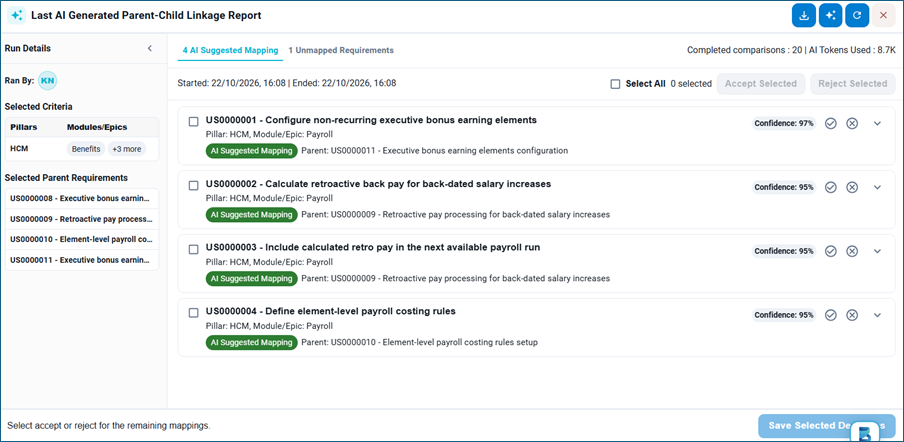
Results are grouped into tabs by outcome type, including:
- AI Suggested Mapping – the AI recommends linking the unmapped requirement to a selected parent.
- Unmapped Requirements — the AI found a possible match but recommends manual confirmation before linking (formerly labeled Human Review).
- Unresolved – the AI could not determine a suitable parent mapping.
- Pillar/Epic Mismatch – a semantic match exists but pillar or module/epic does not align.
- Promote to Parent – the AI recommends promoting the requirement to become a parent.
- Scope Creep – the requirement appears outside the committed parent scope.
- Methodology – the requirement relates to process or methodology rather than a functional parent mapping.
Use the run details sidebar to see who ran the analysis, the selected criteria (pillars and modules/epics), and the selected parent requirements used for the run. Completed comparisons and AI tokens used are shown in the report chrome.
Each result row shows the unmapped Requirement ID, title, pillar, module/epic, outcome, and suggested parent where applicable.
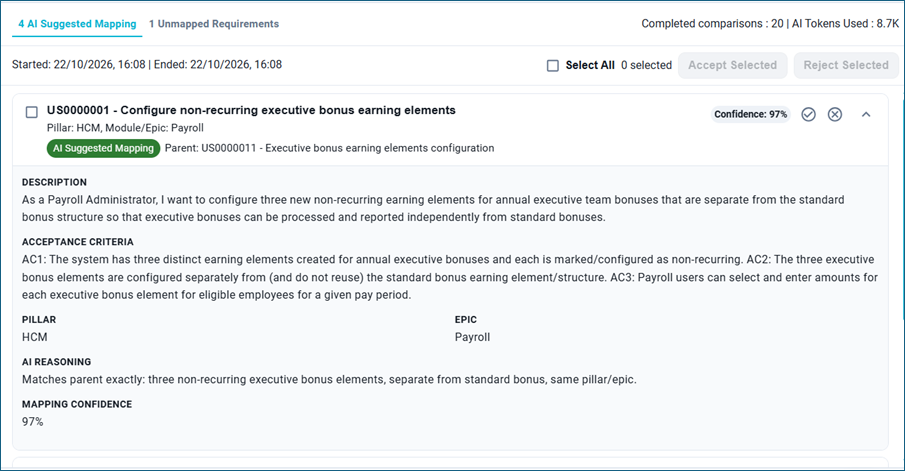
Expand a row to review detailed AI analysis, including:
- AI Reasoning and Cluster Reasoning – why the AI grouped or classified the requirement.
- Mapping Confidence and Classification Confidence – how confident the AI is in its mapping and classification.
- Classification Reasoning – explanation of the assigned outcome.
- Cluster, Cluster Size, and Capability Class – how the requirement relates to similar items.
- Suggested Parent and Suggested Parent Description – when the AI proposes a parent candidate.
- Reference Library Match and Historical Frequency — supporting signals used in the assessment. Additional fields may include Cluster Recommendation, Row Promotion Role, and a singleton indicator when no related siblings are found.
You can download the full report to Excel using the download icon in the panel header. Use Re-Generate Report to start a new analysis run when you need a fresh assessment. Use Load more when the tab has additional result pages.
Accepting or Rejecting Results
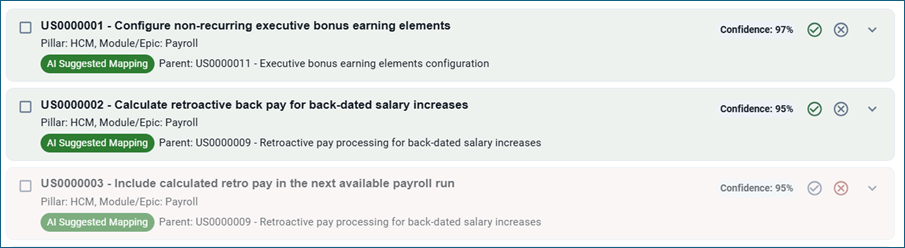
For AI Suggested Mapping and Promote to Parent results, use Accept or Reject on each row to record your decision. You can also select multiple rows and use Accept Selected or Reject Selected.
For Unmapped Requirements and Unresolved results, select the appropriate parent requirement from the dropdown before accepting. The dropdown lists parent requirements that match the same pillar and module/epic as the unmapped requirement.
Accepted mappings are saved and applied to the backlog hierarchy. Rejected results are not applied. Outcomes such as Pillar/Epic Mismatch, Scope Creep, and Methodology are provided for review only and are not applied automatically.
When you have marked your decisions, click Save Selected Decisions. BriefSpec persists your choices and updates accepted parent-child linkages in the backlog.
After pending decisions are saved, finalized rows leave the pending report list. When no pending decisions remain, the panel returns to scope selection so you can run another analysis if needed. Refresh the Backlog to see updated hierarchy linkages on accepted requirements.
Important: AI Parent-Child Linkage provides recommendations only. Always review AI reasoning, confidence scores, and suggested parents before accepting mappings for use in your project deliverables.