Managing Defects
User Guide
BriefSpec
1. Introduction
Defects in BriefSpec are the formal record of a problem found during testing or in production. A Defect captures what went wrong, how severe it is, who should fix it, and how it was resolved — creating an auditable trail from discovery through to closure.
This guide explains how to create, manage, triage, and resolve Defects within a project. It is written for test managers, developers, testers, and project managers who work with the Defects module.
What you can do with Defects
• View and search all defects for a project in List or Kanban (Board) view.
• Create defects from a Quick Create panel, the full editor, or with AI assistance.
• Log defects directly from a failed test step during test execution.
• Assign defects and set priority, severity, and due date — including inline and bulk updates.
• Link defects to the test case (and related requirement) that revealed them.
• Manage resolution notes with optional AI assistance, and generate summaries or knowledge articles when enabled.
• Track the full change history on the Audit Trail tab.
• Import and export defects using Excel.
2. Accessing Defects
Defects are managed at project level.
• Sign in to BriefSpec and open the project you are working on.
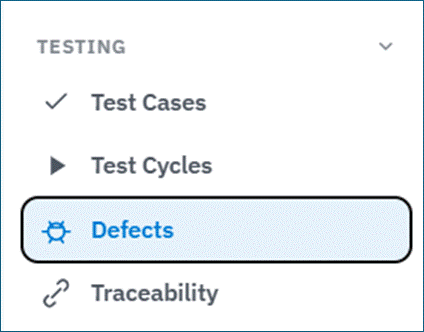
• In the project sidebar, under Testing, select Defects (bug icon).
Everything on this screen applies only to the project you have open. If you do not have permission to view Defects (view-defects), the item may not be visible.
3. The Defects Screen
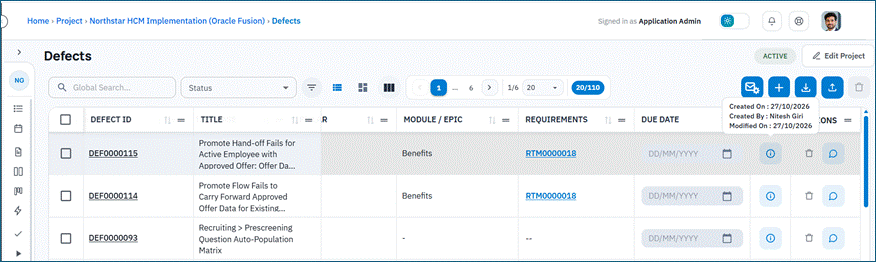
The Defects screen lists all defects for the current project. Use the view selector on the toolbar to switch between List and Kanban. Your choice is remembered for this browser session.
List view
Displays defects in a sortable, filterable table — best for scanning large numbers of defects quickly. You can edit Status, Priority, Severity, Assigned To, Due Date, Test Case, and Description from the grid without opening the full page. Click a Requirement to open requirement details. The Info control shows Created On, Created By, and Modified On.
Kanban view
Displays defects as cards organised into columns by status. Drag a card between columns to change its status. Some moves (for example into or out of Internal Review or Client Review) may ask you to confirm or set an assignee. Closed defects cannot be moved.
Note: Search, filters, and column controls apply to List view. In Kanban they are disabled with a message that filters apply to list view only.
Columns you will see (List view)
| Column | What it means |
| Defect ID | Unique identifier automatically assigned (for example DEF0000001). |
| Title | Short description of the defect. |
| Description | Longer defect details (editable in a popover from the list). |
| Status | Current lifecycle status (for example New, In Progress, Fixed, Closed). |
| Assigned To | Team member responsible for fixing the defect. |
| Priority | Business urgency: Low, Medium, High, or Critical. |
| Severity | Impact level: Low, Medium, High, or Critical. |
| Mode | How the defect was created: Manual or AI. |
| Test Case | Test case in which the defect was found (if applicable). |
| Pillar | High-level software area, typically derived from the linked test case. |
| Module / Epic | Module or epic within the pillar. |
| Requirements | Requirement related through the linked test case (opens a details modal). |
| Due Date | Target resolution date. |
| Custom Field 1–5 | Optional key/value custom fields when used. |
| Created By / Updated By / Created Date | Audit columns for who logged or last updated the defect. |
| Info / Actions | Info tooltip and row actions such as comments or delete. |
Template custom fields configured for the project may also appear. Use Show/Hide Columns and drag headers to reorder. Save column preferences (and Reset) so your layout returns the next time you open Defects for this project.
Row actions
• Add / View Comments — opens a comments side panel (with attachments and a link to the full editor).
• Delete — permanently remove the defect when permitted. Only Open defects with no linked Test Case can be deleted (and only with delete privilege).
Search and filters
• Global Search — type keywords and press Enter to search (for example across ID, title, and description).
• Status filter — multi-select lifecycle statuses (with Select All).
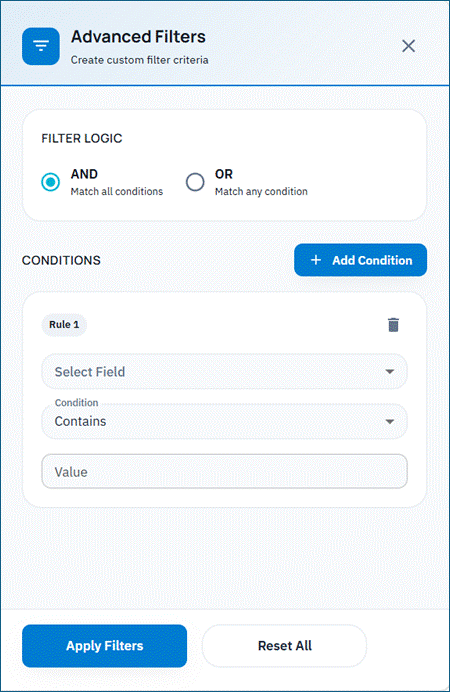
• Advanced Filters — build rules with AND or OR on fields such as Defect ID, Title, Description, Status, Priority, Severity, Test Case, Pillar, Module/Epic, Requirement ID, Assigned To, Created By, Updated By, Created Date, Due Date, Mode, and template custom fields.
Active filters appear as chips above the list. Remove a chip with ×. Filter and sort choices are preserved for the session and are shared when you open a defect in the full editor.
Toolbar actions
• Add Defect — opens the Quick Create panel (see section 5).
• Import — Excel import with mapping (see section 9).
• Export All / Export Selected — downloads Defects_Export_….xlsx.
• Inbound email alias — project email address for creating defects by email when configured.
• Find Duplicate Defects / Smart Defect Review — AI duplicate analysis when enabled for your environment and you have full edit rights.
3. Defect Status
Every defect moves through a lifecycle controlled by the project configuration. The statuses below are the common default set; your administrator may add or rename statuses through the project template.
| Status | Typical meaning |
| New | Defect has just been logged and not yet reviewed. |
| Open | Defect has been reviewed and accepted for fixing. |
| Assigned | Defect has an owner. |
| In Progress | Someone is actively working on the fix. |
| QA In Progress | Fix is under quality verification. |
| SR in Progress | Related service-request style work is in progress. |
| Internal Review | Awaiting internal review. |
| Client Review | Awaiting client review. |
| Needs Clarification | Waiting on more information. |
| Fixed | Fix applied; awaiting verification. |
| Verified | Fix verified and ready for closure. |
| On Hold | Work is paused. |
| Rejected | Rejected and sent back for further action. |
| Closed | Closed; no further action. Closed defects are read-only. |
Closing a defect may require a Resolution to be saved first. If mandatory resolution is on for your project and is missing, you will be prompted before the status change is confirmed. Moving into or out of Internal Review or Client Review typically asks for an assignee.
5. Creating a Defect
There are three common ways to log a defect in BriefSpec:
5.1 From the Defects screen (Quick Create)
• Click Add Defect on the toolbar.
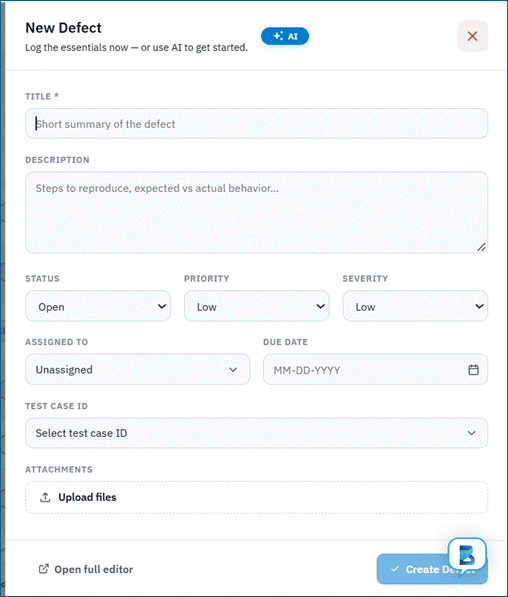
• The Quick Create panel opens (New Defect). Fill in Title (required), Description, Status, Priority, Severity, Assigned To, Due Date, Test Case (search by ID or title), Attachments, and any template custom fields.
• Save to create the defect, or open the full editor if you need the complete form.
Requirement, Pillar, and Module/Epic are normally derived from the linked Test Case rather than entered as free-standing create fields.
5.2 With AI assistance
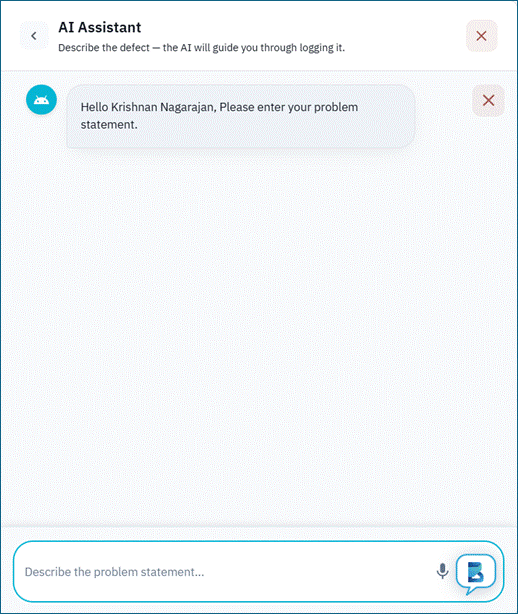
When AI is enabled for your tenant and you have create-with-AI privilege, use the AI pill on Quick Create or the AI tab on the full new-defect page.
• Describe the problem in the prompt.
• Generate and review the drafted title and description.
• Adjust as needed, then save.
AI-created defects are labelled with Mode: AI. If AI is disabled or not permitted, the AI path is hidden.
5.3 Directly from a failed test step
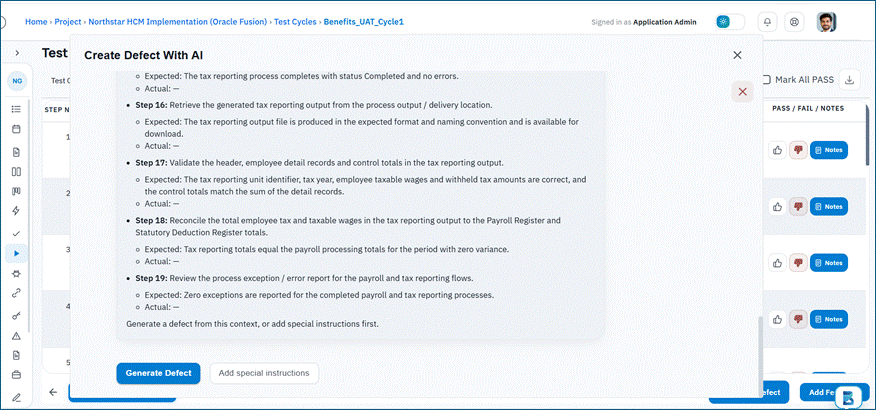
While executing a test case in a Test Cycle, testers can log a defect without leaving the execution view.
• Mark a test step as Failed.
• Choose to create / log a defect from the execution panel.
• Complete the form — the test case (and step context) is pre-filled.
• Save. The defect appears in the Defects list.
If your project requires mandatory defect creation for failed steps, you cannot move past the step until a defect is logged. Defects created from execution keep their test case link locked.
6. The Defect Detail Page
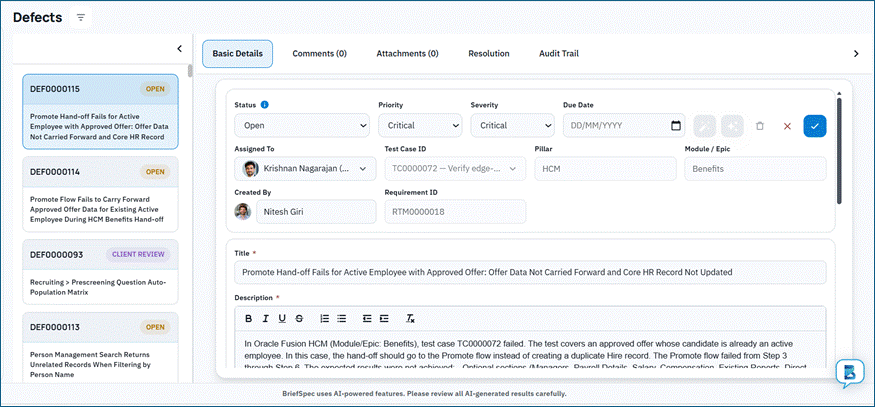
Open a defect from the list (or from Kanban) to load the full editor. A resizable defect list can remain on the left so you can move between records while keeping the same filters. Tabs on an existing defect typically include:
Basic Details
• Title and Description (rich text; description is required on the full form).
• Status, Priority, Severity (Low / Medium / High / Critical), Due Date.
• Assigned To and Test Case ID.
• Pillar and Module/Epic (read-only when derived from the test case).
• Requirement ID (read-only on edit when linked through the test case).
• Attachments and template custom sections.
Header actions can include Save, Cancel, Delete (when allowed), AI Summary, and Generate Knowledge Article (requires a saved resolution and the right privileges). Save stays disabled until something changes.
Comments
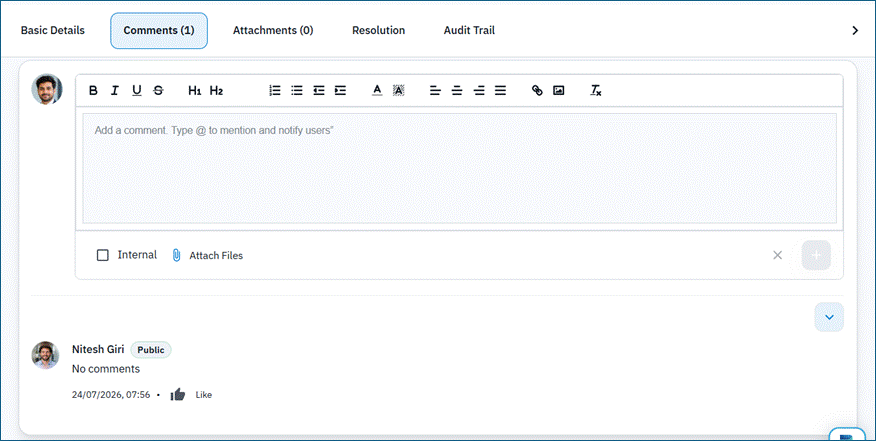
Team members discuss the defect here. Comments support:
• Rich-text formatting.
• @mention to notify a teammate.
• Internal vs Public visibility (client users cannot be mentioned on internal comments).
• File attachments per comment; edit and delete when permitted.
Attachments
Upload and manage supporting files — screenshots, logs, recordings, or other evidence. Drag and drop is supported. Typical types include images, PDFs, and Office documents.
Resolution
• Resolution comments — rich-text description of the fix.
• AI-assisted generation — draft resolution notes from the defect context (optional additional details and voice input when available). Review before saving.
If mandatory resolution is configured, you must save a resolution before the status can change to Closed.
Audit Trail
A chronological log of changes to the defect — field updates, status transitions, assignments, comments, and attachments — with timestamps and the user who made each change.
7. Editing a Defect
Open the defect and update Basic Details, then Save. You can also change Status, Priority, Severity, Assigned To, Due Date, Test Case, and Description inline from the List view when you have edit rights.
• Closed defects are read-only and are skipped by bulk updates.
• Some status transitions show a confirmation dialog or require an assignee or resolution.
• Execution-created defects cannot have their Test Case changed.
8. Bulk Actions
Select multiple defects with row checkboxes to update them together (List view).
Selecting defects
• Use individual row checkboxes.
• Use the header checkbox to select all defects on the current page.
• Use Select All to select every defect matching your current filters — not just the current page.
Available bulk actions
| Action | What it does |
| Bulk Status Update | Change status for all selected defects. |
| Bulk Priority Update | Set priority for all selected defects. |
| Bulk Severity Update | Set severity for all selected defects. |
| Bulk Assigned To | Assign all selected defects to a team member. |
| Bulk Due Date Update | Set a due date for all selected defects. |
| Bulk Delete | Delete eligible defects after a preview of what can be removed. |
Closed defects are skipped. Bulk close asks for confirmation and respects mandatory resolution — defects without a required resolution are not closed.
9. Import and Export
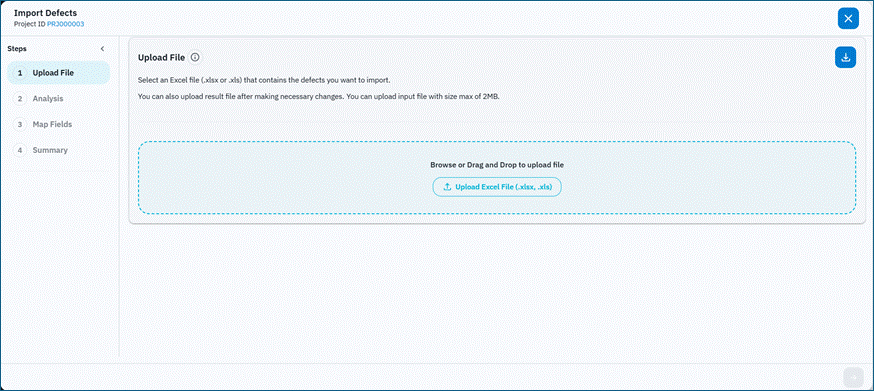
Importing defects
Use Import on the toolbar to bring defect records into the project from Excel.
• Click Import and upload an Excel file (.xlsx or .xls), up to 2 MB.
• Download the sample file if you need the expected layout.
• Map spreadsheet columns to BriefSpec fields (AI can suggest mappings).
• Review results. You can download Defect Import Output Result.xlsx for created, updated, skipped, and error rows.
ZIP upload is not supported for defect import.
Exporting defects
• Export All — exports the complete defect list for the project.
• Export Selected — exports only the defects you have checked.
The download file name follows Defects_Export_<timestamp>.xlsx.
10. Linking Defects to Test Cases and Requirements
Linking connects a defect to the artefact that revealed it, enabling Traceability across the project.
Test Case
On Basic Details (or in Quick Create / list inline edit), use Test Case to search by ID or title and select one test case. A defect links to a single test case. Execution-origin defects are linked automatically and keep that link locked.
Requirement, Pillar, and Module/Epic
These usually come from the linked test case. On the list, Requirements opens a requirement details modal. On the edit page, Requirement ID is typically read-only.
Key Decisions and RAID Logs can also associate defects (Associated Defects) from those modules.
11. AI Features
When AI is enabled for your tenant (and your privileges and plan allow it), Defects can use AI in these ways:
• Create with AI — Quick Create AI pill or full-page AI tab drafts title and description.
• AI-assisted Resolution — draft resolution comments on the Resolution tab.
• AI Summary — Executive, Comprehensive, or Both from the defect header when available.
• Generate Knowledge Article — create a knowledge article from a saved resolution when you have article permission.
• Smart Defect Review / Find Duplicate Defects — group likely duplicates across cycles when the feature is available.
If AI is disabled or not on your plan, those controls do not appear. Contact an administrator to enable AI or upgrade.
12. Permissions
Defect capabilities are controlled by project privileges (for example view-defects, add-defects, create manually / with AI, edit, assign, import, download, delete, comments, attachments, activity, and resolution view/edit). Some actions also check Own vs All (created by you or assigned to you). Your tenant may customize roles. Execution screens use create-defect and view-linked-defects separately.
13. Related Areas
| Area | How it relates to Defects |
| Test Cases | Defects link to the test case where they were discovered. |
| Test Cycles / Execution | Defects are logged from failed steps during a cycle. |
| Backlog / Requirements | Requirement context comes through the linked test case. |
| Traceability | Mindmap/Swimlane can expand defects under test execution. |
| Phase | Association can appear through the linked test case’s phase. |
| Key Decisions / RAID Logs | Can list associated defects. |
| Project Dashboard | Shows defect counts, status breakdowns, and trends when configured. |
14. Tips and Important Notes
• Use List for filtering and bulk work; use Kanban for triage by status.
• Save column preferences so your Defects layout persists for the project.
• Priority and Severity both use Low, Medium, High, and Critical in the current UI.
• Closed defects are read-only; delete is limited to Open defects with no test case link.
• Import accepts Excel only (.xlsx / .xls), not ZIP.
• Audit Trail is the history tab name (not Activity Stream).