BriefSpec Notifications
User Guide
Introduction
BriefSpec has three related notification surfaces. Settings → Notifications controls when alerts are sent and who receives them for Test Cycles, Service Requests, Defects, and Phases. Settings → Time Entry Notifications controls the weekly hours reminder for time logging. The navbar Notifications bell shows your personal in-app feed for those events and other project activity. Instead of relying on people to remember deadlines and status changes, you define simple rules that BriefSpec can use to keep the right team members informed at the right time.
Module notification rules are intended for Application Admins and project leads who manage how the workspace communicates about upcoming due dates, overdue work, escalations, and key workflow events. Time Entry Notifications can be viewed by anyone who can open Settings, but only Application Admin, Camptra Admin, or Camptra Super Admin can change them. The in-app bell is available to signed-in users for their own feed.
This guide explains how to open Notifications under Settings, understand each tab, configure rules and recipients, save your changes, set Time Entry Notifications, and use the in-app Notifications bell.
Accessing Notifications
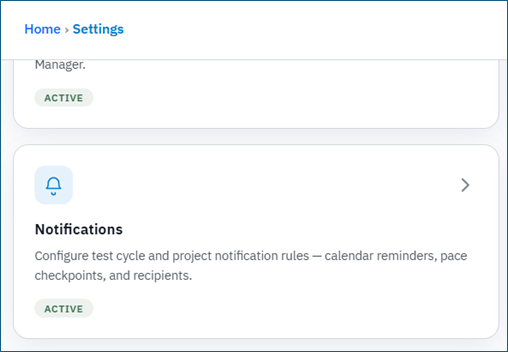
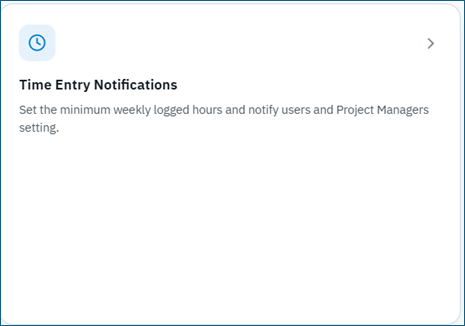
From the main BriefSpec navigation, open Settings. On the Settings hub, select the Notifications card (calendar reminders, pace checkpoints, and recipients for Test Cycles, Service Requests, Defects, and Phases). The hub also shows a separate Time Entry Notifications card for weekly hours reminders.
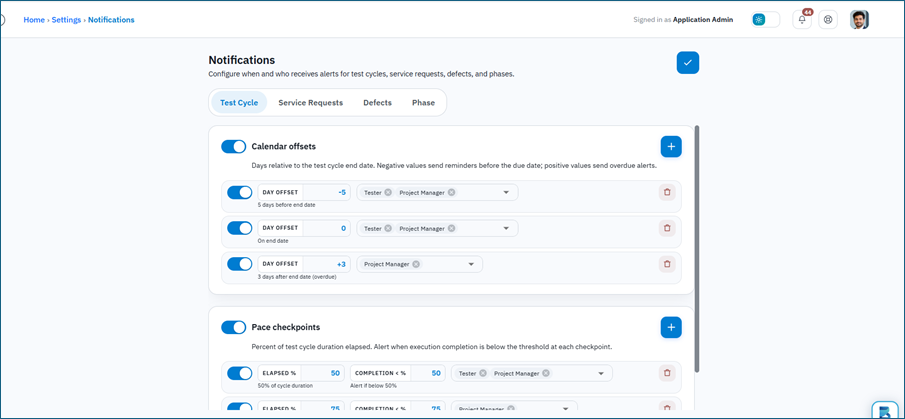
The Notifications page shows four tabs across the top: Test Cycle, Service Requests, Defects, and Phase. Use the checkmark Save button in the top-right corner to save changes for all tabs.
Before you configure Notifications:
- You need access to the Settings hub. The Notifications card does not use a separate privilege or plan key in the product UI — if you can open Settings, you can open Notifications. Saving rules is enforced by the API.
- Decide which roles should receive reminders for each module, such as Project Manager, Assignee, or Client Reviewer.
- Review the default rules first. BriefSpec ships with sensible starter rules that you can keep, adjust, or turn off.
How Notification Rules Work
Each tab follows the same pattern. You turn a section on or off with a master toggle, then configure one or more rules. Each rule can also be turned on or off individually.
Calendar offsets
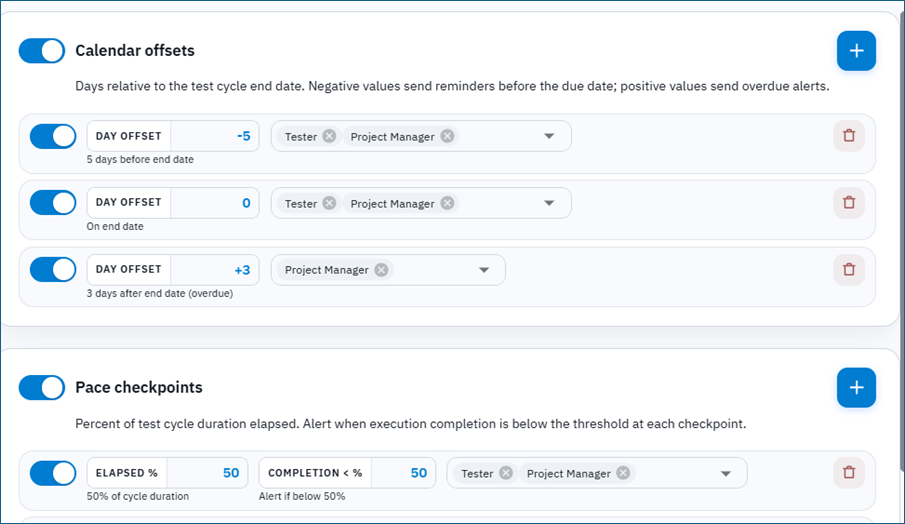
Calendar offsets send reminders relative to a due date or end date. The Day offset value works like this:
- Negative numbers (for example -5) send a reminder 5 days before the event date.
- 0 sends a reminder on the event date.
- Positive numbers (for example 3) send a reminder 3 days after the event date (overdue).
Recipients
Every rule has a recipients list. Recipients are roles related to the item, not free-form email addresses. Common examples include Project Manager, Tester, Cycle Owner, Assignee, Requester, Creator, Client Reviewer, Review Submitter, and Phase Creator. Select recipients from the multi-select on each rule row.
Adding and removing rules
Use the plus button in a section header to add a new rule. Use the trash icon on a rule row to remove it. Turn a whole section off if you do not want that category of alerts at all.
Test Cycle Tab
Use the Test Cycle tab to remind testers and project leaders about Test cycle deadlines and execution pace.
Calendar offsets
These reminders are based on the Test Cycle end date. Typical starter rules remind people five days before the end date, on the end date, and three days after the end date if work is still pending.
Available recipients include:
- Tester
- Project Manager
- Cycle Owner
Pace checkpoints
Pace checkpoints watch how far the Test Cycle has progressed through its planned duration. At each checkpoint, BriefSpec can alert recipients if execution completion is below the threshold you set.
For example, a rule at 50% elapsed time with a completion threshold of 50% means: when half the cycle duration has passed, notify the selected people if less than half of executions are complete.
Each pace rule has an Elapsed % value, a Completion < % threshold, and a recipient list.
Service Requests Tab
Use the Service Requests tab to stay ahead of due dates, escalations, and status changes on service requests.
Calendar offsets
These reminders are based on the service request due date. You can remind people before the due date, on the due date, and after the due date when a request is overdue.
Available recipients include Assignee, Requester, and Project Manager.
Priority / Severity escalated
Use escalation rules to notify people when Priority or Severity is set to High or Critical. You can create separate rules for Priority and Severity, choose which levels trigger the alert, and select recipients such as Assignee and Project Manager.
Closed / Reopened
Turn this section on to notify selected people when a service request is closed or reopened. Recipients can include Assignee, Requester, and Project Manager.
Defects Tab
Use the Defects tab to configure reminders and escalations for project defects. The layout is similar to Service Requests, with defect-specific recipients.
Calendar offsets
These reminders are based on the defect due date. Configure day offsets and recipients the same way as other calendar rules.
Available recipients include Assignee, Creator, and Project Manager.
Priority / Severity escalated
Notify selected people when a defect Priority or Severity is set to High or Critical. Create separate rules if you want different handling for Priority versus Severity.
Closed
Turn this section on to notify selected people when a defect is closed. Defects do not use a Reopened rule in this settings tab since defects cannot be reopened.
Available recipients include Assignee, Creator, and Project Manager.
Phase Tab
Use the Phase tab for reminders related to project Phases and Phase requirements. This is where you keep delivery dates, client review aging, build-complete nudges, and overdue requirements under control.
Available Phase recipients include:
- Assignee – the builder on the Phase requirement.
- Review submitter – the person who submitted the requirement for client review.
- Client reviewer – the client-side reviewer.
- Project Manager
- Phase creator – the person who created the Phase.
Calendar offsets
These reminders are based on the Phase end date while the Phase is in progress. Use them for advance warnings, end-date reminders, and overdue alerts at the Phase level.
Pending Review aging
Aging rules watch how many days a Phase requirement remains in Pending Review. Use escalating day thresholds to nudge the Client Reviewer first, then escalate to the Review Submitter and Project Manager.
Each aging rule has a Days value and a recipient list. For example, notify the Client Reviewer after 3 days if it still exists in their queue, then include the Review Submitter and Project Manager as well if it still has not moved after 7 days.
Build Complete → ready for review
This rule nudges people when Build Status is Build Complete but Review Status is still Draft. It helps close the gap between finishing build work and submitting for client review. The section title in the product is Build Complete → ready for review.
You can set Delay days to 0 for an immediate reminder, or choose a number of days to wait before notifying. Typical recipients are Assignee and Review Submitter.
Overdue requirements
These reminders focus on individual Phase requirements whose effective end date has passed while build is still not complete. BriefSpec uses the requirement end date when available, otherwise the Phase end date, otherwise the project end date.
Use Day offset values such as 0, 3, and 7 to remind Assignees and Project Managers as requirements slip.
Time Entry Notifications
Time Entry Notifications are separate from the four-tab Notifications page. On the Settings hub, open the Time Entry Notifications card to open the dedicated page (breadcrumb: Home → Settings → Time Entry Notifications).
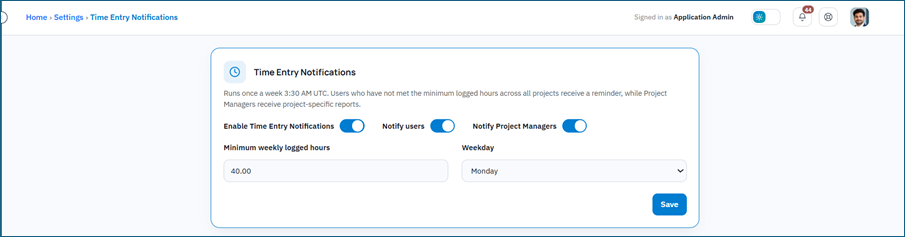
The page explains that the job runs once a week at 3:30 AM UTC. Users who have not met the minimum logged hours across all projects receive a reminder, while Project Managers receive project-specific reports.
Settings on this page:
Enable Time Entry Notifications — master switch for the weekly job.
Notify users — remind users who are below the minimum weekly logged hours.
Notify Project Managers — send project-specific reports to Project Managers.
Minimum weekly logged hours — number from 1 through 168 in quarter-hour steps (for example 40.00).
Weekday — day of week when the weekly check runs (Monday through Sunday).
Save — stores Time Entry notification settings for the tenant.
Anyone who can open Settings can view these settings. Only an Application Admin, Camptra Admin, or Camptra Super Admin can change them. If you cannot edit, the page shows: You can view these settings. Only an Application Admin, Camptra Admin, or Camptra Super Admin can change them.
In-App Notifications (navbar bell)
Signed-in users open Notifications from the bell icon in the top navigation. The tooltip and panel title are Notifications. An unread badge appears when you have unread items (shows 99+ when the count is above 99).
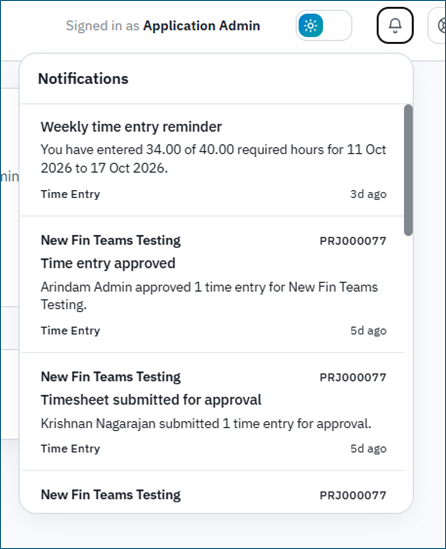
The panel lists recent in-app notifications for you. Opening the panel marks items as read. Use Mark all read to clear the unread state. Scroll to load more when available. If there are no items, the empty state shows No notifications yet.
Items are labeled by module. Common labels include Test Cycle, Test Case, Service Request, Defect, Phase, Time Entry, Action Item, Key Decision, Backlog, Article, RAID Log, Plan, Boards, Financials, Project Team, and System. Project name may appear on the item when the notification is project-scoped. Relative times such as just now, 5m ago, or 2d ago help you scan recent activity.
The in-app feed is personal delivery of events. Configuring who is eligible and when alerts fire for Test Cycle / Service Requests / Defects / Phase still happens on Settings → Notifications. Weekly hours reminders are configured on Time Entry Notifications.
Saving Your Changes
After you update any tab on the Notifications page, click the checkmark Save button in the page header. BriefSpec saves the full Notifications configuration for your tenant, including Test Cycle, Service Requests, Defects, and Phase. A success toast confirms Notification settings saved. Time Entry Notifications uses its own Save button on that page and confirms with Time Entry notification settings saved.
If saving fails, review your connection and try again. Unsaved changes on the Notifications page are not applied until you save successfully. Switching tabs on the Notifications page does not discard your edits, but the configuration is only stored when you click Save.
Tips for Better Results
- Start with the defaults. Turn off only the sections you know you do not need.
- Keep recipient lists focused. Too many recipients on every rule can create alert fatigue.
- Use negative day offsets for early warnings and positive offsets for overdue escalation.
- For Phase Pending Review aging, escalate gradually – first to the reviewer, then to internal owners.
- After major process changes, revisit Notifications so rules still match how your teams work.
Review Time Entry Notifications after you enable time logging so the minimum hours and weekday match your delivery calendar.
Teach users to check the navbar Notifications bell for in-app alerts in addition to email.
Important Notes
Notifications Settings control when and who should be alerted for Test Cycle, Service Requests, Defects, and Phase. Time Entry Notifications are configured separately on the Settings hub / Time Entry Notifications page. Existing transactional emails for individual actions, such as assignment or review outcomes, may still exist separately from these configurable rules. In-app items also appear in the navbar Notifications bell for the signed-in user.
Important: Always Save after making changes on the Notifications page or the Time Entry Notifications page. Switching tabs does not discard your edits on the Notifications page, but your configuration is only stored when you click Save.