Test Library Insights Guide
User Guide
BriefSpec
Introduction
Library Insights helps BriefSpec reuse existing Test Case Library content when AI generates new Test Cases. Application Admins prepare the Test Case library so generation can find similar, approved examples instead of writing only from the requirement text.
The feature has two parts. First, selected libraries are indexed so BriefSpec can search them. Second, a Project template setting tells generation whether to use those indexed libraries. Authors who generate Test cases do not turn the setting on themselves. The project template you assign controls that.
This guide explains how Application Admins enable Library Insights for a workspace, index libraries, and turn on/off generation for a Project.
Accessing Library Insights
Library Insights is managed from two places. Indexing is done on the Test Case Library. The generate setting is done on the Project module configuration template.
To index libraries, open Settings and go to the Test Case Library.
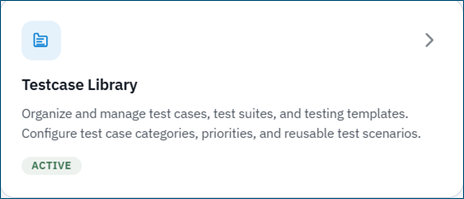
The Test Case Library list looks like below.
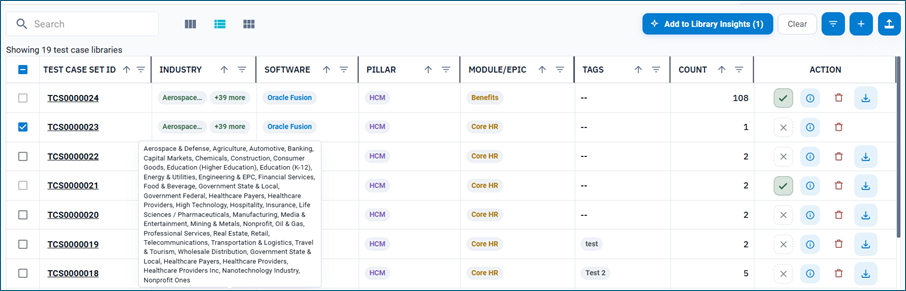
Select one or more of Test Case sets and click on the ‘Add to Library Insights” to add the Test Case set to the Library Insights.
Under the Action column, you will see the first icon which displays the status, if a Test Case set has been added to the Insights library or not. You can hover the mouse on it to get more details.
Before you can use Library Insights:
- Library Insights must be enabled for your tenant or workspace.
- Your user role must have permission to import a Test case set. The same privilege is used to manage Library Insights indexes.
- Your user role must have permission to update Project templates if you need to turn generation on/off for a project.
- AI-powered features must be enabled for your tenant.
If Library Insights is not enabled for the workspace, the Test Case Library shows that status and indexing actions are unavailable.
Here is how the Library Insights status on a library row looks like.

Status Ready means generation can use that library. Update needed means the library changed after it was indexed. Failed means the last attempt did not complete and can be retried.
Indexing Libraries
Select one or more libraries that are not yet in Library Insights, then add them. You can also retry a failed library or refresh a library that needs an update.
Indexing runs in the background. You may continue other work while a library is queued or indexing.
When the index is ready, the row shows that the library is in Library Insights. Generation can then use its test cases as examples, if the project template setting is on.
Enabling Generation for a Project
Indexing alone does not turn Library Insights on for generation. You also set a special field on the Test Cases module of the template used by the Project.
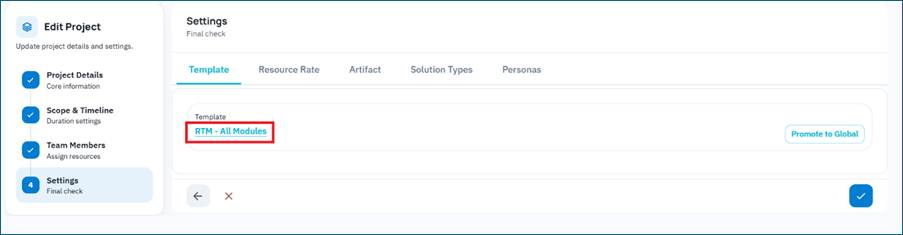
Open Settings, then Project Templates. Open the custom or tenant template assigned to the project. Do not use a read-only System template if you need to change the value. Click on the Template.
Select the Test Cases module. Open the Condition tab. This tab lists special fields for the module, such as Mandatory Requirement Link. The Condition tab looks like below.
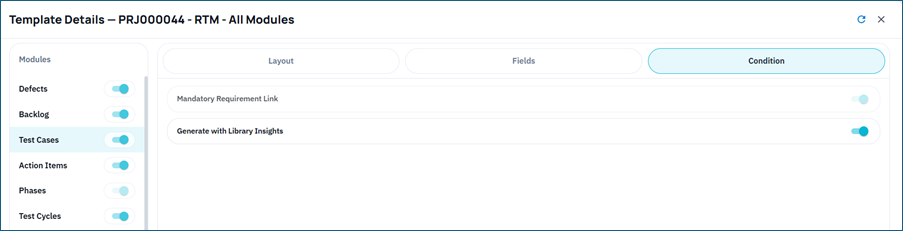
Turn on Generate with Library Insights flag. By default, this flag is set to True. When set to False, the Test Cases will just use the requirements as a basis for Test Case generation.
Who Can Access or Set the Flag
Application Admins should treat these as separate permissions:
- Turn generation on for a Project – users who can update project templates, on a template that is not read-only or data-locked.
- Build or refresh the library index – users who can import a Test Case set.
- Generate test cases that reuse the library – Users who can generate Test cases, typically Authors. BriefSpec applies the template setting automatically. These users do not set the flag.
- Workspace enablement – Library Insights must be allowed for the tenant. If it is off, indexing is blocked for everyone.
System templates such as RTM – All Modules are often marked Read Only. Copy or use a tenant template if you need to change the generate setting.
How Generation Uses Library Insights
When an Author generates Test cases on a Project whose template has the setting on, BriefSpec sends the Library Insights flag with the generate request. The service retrieves similar library test cases and uses them as examples.
If the setting is off, generation continues without Library Insights. The Test Case Library list still works if the index is unavailable. Indexing is an optional enhancement and must not block library browsing.
Important Note: Always confirm that the libraries you want reused are indexed and ready before you ask project teams to generate with Library Insights.