Time Entry Management Guide
User Guide
BriefSpec
1. Introduction
Time Entry records effort on project work: who worked, which Activity and Item, the date, hours, billable vs non-billable, and optional notes. Entries move through Draft, Pending (submitted for approval), Approved, Rejected, and Invoiced.
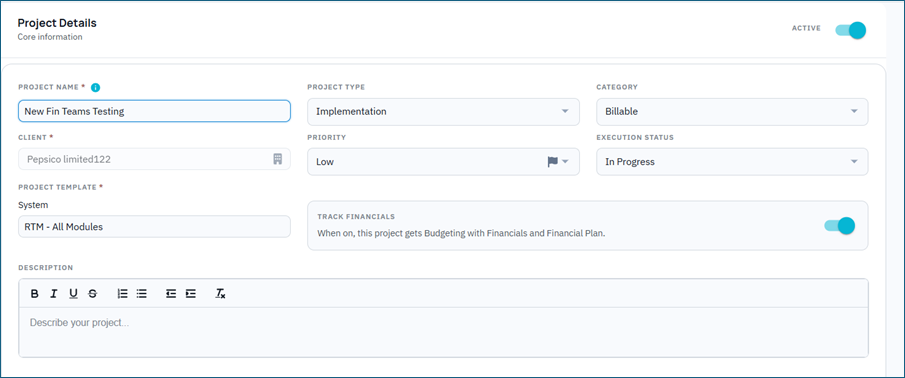
You can open Time Entry from the main sidebar (multi-project workspace), from a project under Project Admin -> Time Entry, or—when enabled—from a Service Request Time Entries tab. On projects with Track Financials, new logs usually target Financial Plan tasks. Approved Financial Plan hours feed Financial Plan actuals.
Only project team members with Time Entry privileges can use project Time Entry. Client project users are not selectable as the person logging time.
2. Accessing Time Entry
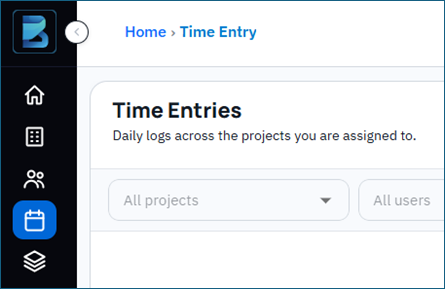
From the sidebar
Select Time Entry in the left sidebar. This opens the multi-project workspace for projects you are assigned to. Use project and user filters to narrow the list.
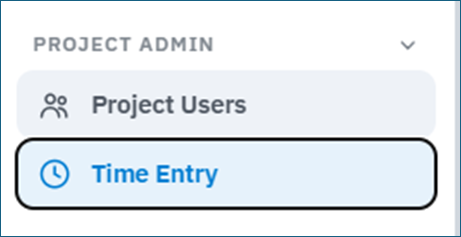
From a project
Open the project and go to Project Admin -> Time Entry. The tab appears when the Time Entry module is active on the project, your plan includes Time Entry, you are a project team member, and your Time Entry view privilege is not Hidden.
From a Service Request
Open a Service Request and use the Time Entries tab when it is visible for your role. Logging is scoped to that service request.
On AMS projects, Time Entry can be blocked until the AMS contract is approved. If so, the product shows that Time Entry is unavailable until the contract is approved.
3. Understanding the Time Entry Screen
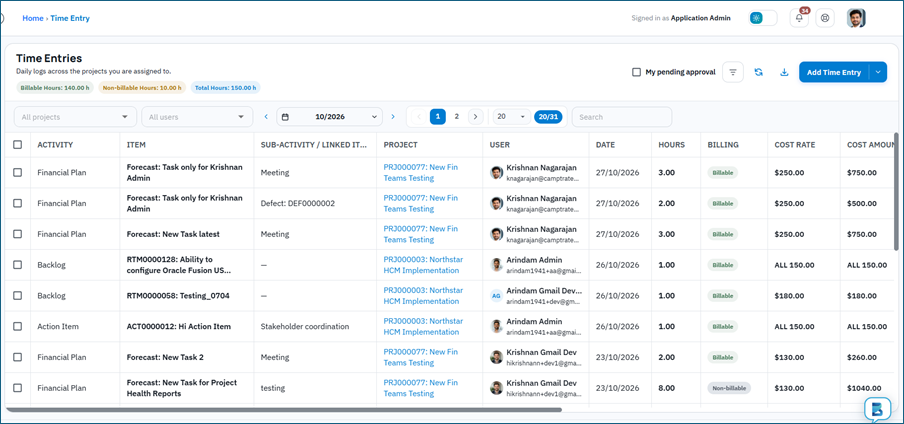
The workspace shows summary chips, period controls, filters, search, toolbar actions, and a table of saved entries. On the project tab you can switch to Setup Estimates for planned hours.
Summary chips
Billable Hours, Non-billable Hours, and Total Hours for the current filter and period. Setup Estimates mode also supports planned-versus-actual style views.
Whose entries you see
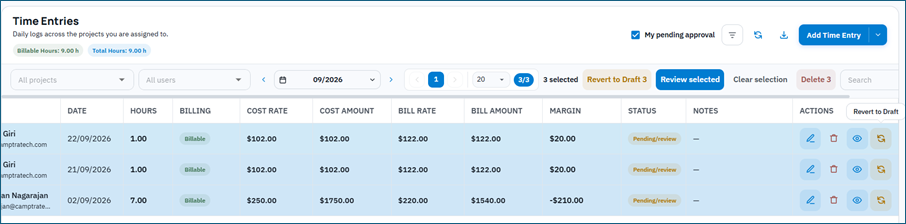
Visibility depends on Time Entry view privileges (Own vs All) and filters. Approvers can use My pending approval to focus on Pending entries waiting for their review. Project and user filters are available on the multi-project workspace.
Period
Use Day, Week, Month, Range, or All. Move previous/next within the period, or pick a custom range when Range is selected. Weeks run Sunday–Saturday.
Filters and tools
Advanced Filters build rules (for example Activity, Status, Project, User, dates) with AND or OR. Active filters appear as chips. Toolbar actions include Refresh, Export, Add Time Entry, and Weekly time entry.
Search and pagination
Search finds rows by visible values such as Item, Activity, Sub-activity, or notes. The table supports page navigation and page size.
4. Entry Lifecycle and Statuses
Statuses you will see: Draft, Pending (shown as Pending/review in places), Approved, Rejected, and Invoiced.
Draft — saved but not yet submitted for approval. Editable by the owner (and others when privileges allow).
Pending — submitted for approval; waiting for a Timesheet Approver.
Approved — accepted; normal edit is locked. May still allow limited field changes in some flows.
Rejected — returned with a required comment; can be edited and submitted again.
Invoiced — locked for normal edit/delete until the Invoiced status is reverted (requires Mark as Invoiced privilege). Only Approved billable entries can be marked Invoiced.
Typical path: Save as Draft -> Submit for Approval -> Approver Approves or Rejects -> (optional) Mark as Invoiced. You can Revert to Draft from Pending.
5. Activities and Work Items
Activities categorize the work. What you can select depends on project type and privileges. Non-financial projects: module Activities you can edit (Plan is not offered for new chargeable logs). Track Financials (non-AMS): Financial Plan only; Meeting time is a Financial Plan sub-activity. AMS financial: Meetings and Service Request (plus Financial Plan where your tenant allows). Meetings may also carry optional linked work items.
Plan — plan tasks exist in the catalog, but new chargeable time is not logged to Plan; use other Activities or Financial Plan as applicable.
Financial Plan — Financial Plan tasks when Track Financials is on (primary Activity on non-AMS financial projects). Tasks must allow hour tracking; baseline tasks are not eligible.
Meetings — calendar/meeting time when offered (on some AMS/financial setups Meetings is an Activity; on others meeting time is a Financial Plan sub-activity).
Backlog — backlog requirements and RTMs.
Phase — phase requirements and sprint stories.
Test Case — project test cases.
Test Cycle — test cycle work.
Defect — project defects.
Service Request — service requests in scope for the user.
Action Item — project action items.
Key Decisions — key decision items.
RAID Logs — risks, assumptions, issues, and dependencies.
Boards — project board cards.
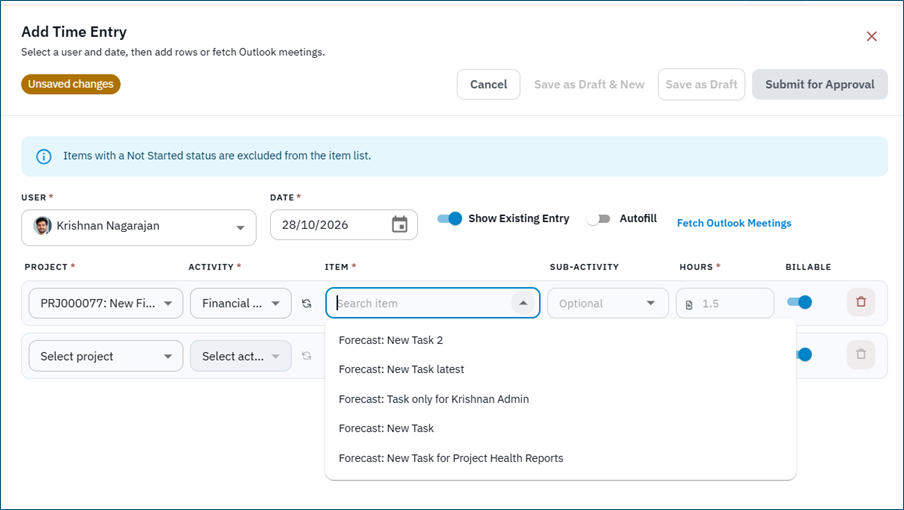
The Item field is populated from the selected Activity, searchable, and scoped to project and user context. Closed or unavailable items may be blocked. Sub-Activity describes the kind of work; you can pick a default or enter a new value for reuse. Financial Plan rows can link related meeting items when applicable.
6. Creating a Time Entry
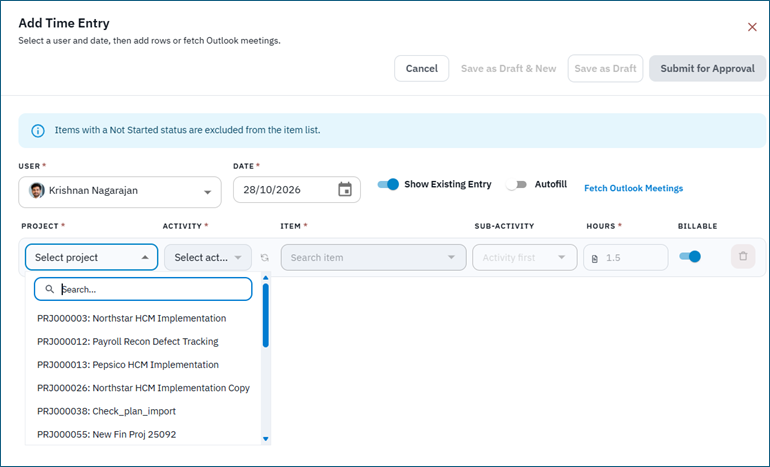
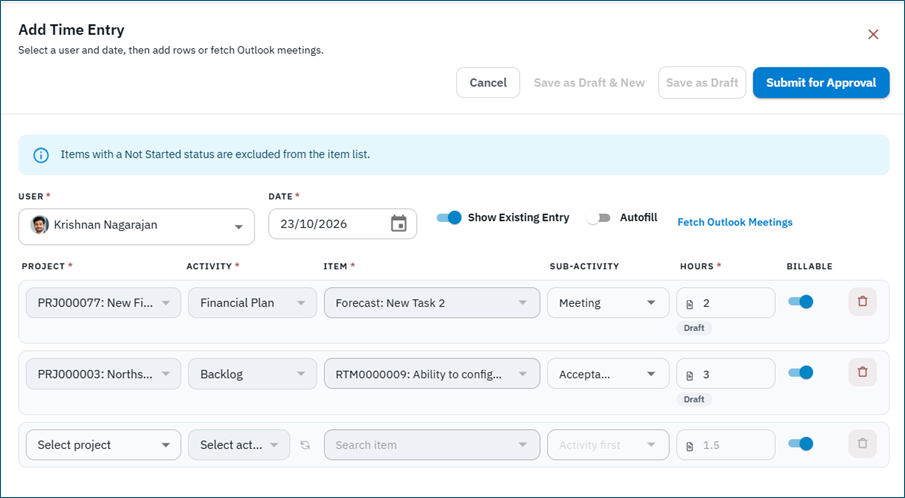
Click Add Time Entry to open the Add Time Entry panel (slide-in drawer). You can enter one or more daily rows, then Save as Draft, Submit for Approval, or use draft-and-new style actions when offered. From the Add menu you can also open Weekly time entry.
Fields
Activity — type of work. On Track Financials projects this is often Financial Plan.
Item — the project artifact the work relates to (search by ID or title).
Sub-Activity — specific work performed (required on project-level entries).
Date — day the work was performed. Future dates are not allowed. Time is generally allowed from the item’s created date (or item/allocation window) up to today, and within the project date range where enforced. Hire date and org/project activation rules can also block days. You cannot log time against a Draft project.
Hours — at least 0.25 and at most 24 for a Daily entry. The product also enforces a 24-hour maximum per user per calendar day across all projects (Rejected rows do not count). Weekly-duration entries use a separate weekly maximum (up to 168 hours).
Billable — Billable or Non-billable.
Notes — optional explanation (searchable in the list).
User — who the time is for (when you can create for others).
After save, the list and summary chips refresh. Draft entries stay Draft until submitted; submitted entries appear as Pending for approval.
7. Weekly Time Entry
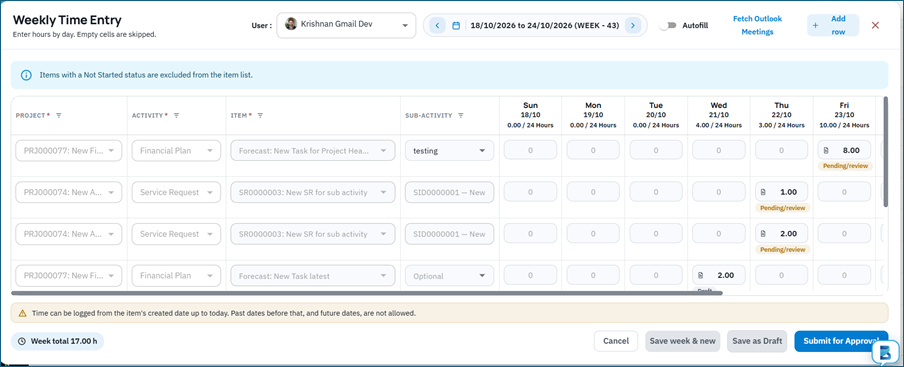
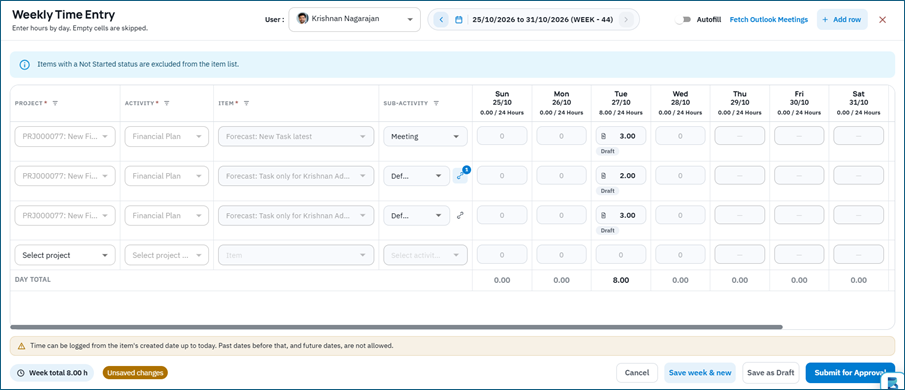
Weekly time entry opens a week grid so you can log hours across days for Activities and Items, then Save as Draft or Submit for Approval. Use it for a full week of related work instead of opening the daily drawer repeatedly.
8. Outlook Meetings and Autofill
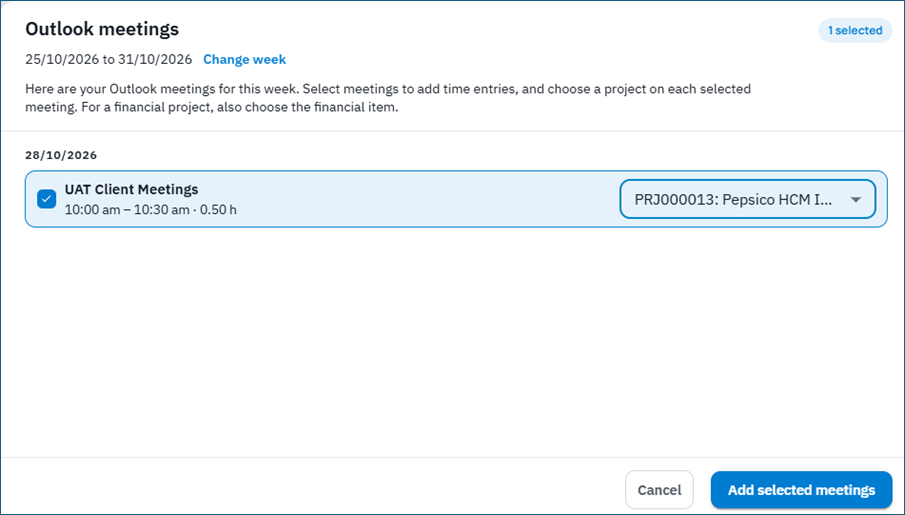
When Outlook calendar is connected (BriefSpec Outlook Calendar connect/status/events), you can pick meetings to prefill hours and notes into daily rows. Meeting time can map to the Meetings Activity or to a Financial Plan Meeting sub-activity, depending on project setup. You can also autofill from assigned project items when that option is offered.
Outlook fetch is for your own calendar (self user). Linked meeting items can be attached where the UI offers them.
9. Setup Estimates
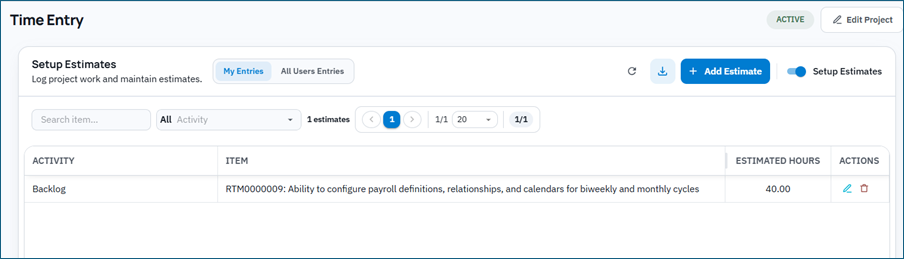
On the project Time Entry tab, turn on Setup Estimates to capture expected effort for an Activity and Item. This mode uses a separate estimates form and table. Estimates help compare planned effort with actual logged hours. Setup estimates are optional in the current product configuration.
Select Activity, User, Item, and Estimated Hours (minimum 0.25).
Saved estimates appear in the Setup Estimates table with actions when you have update or delete privileges.
10. Approval and Timesheet Approvers
Submitted entries wait as Pending. Runtime Approve/Reject requires the user to be listed as a Timesheet Approver on the project (Team / project settings). The approve-entries privilege controls who can appear as an approver candidate—it is not enough by itself to approve. This is separate from Budget Approver (Financials contract review).
Reviewing entries
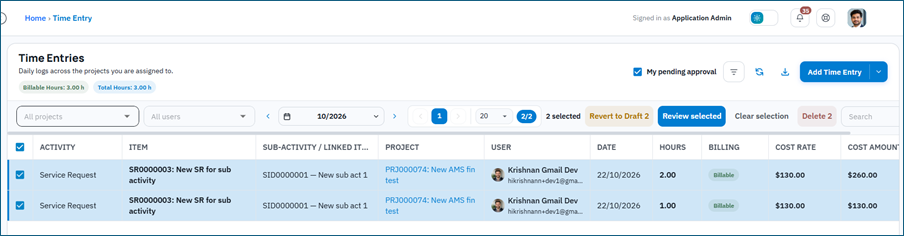
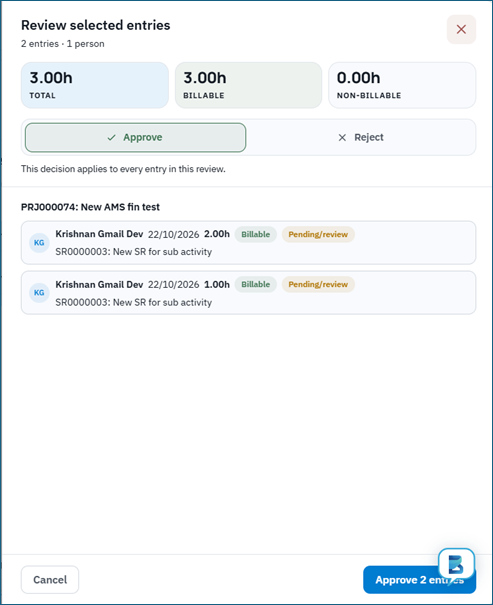
Approvers can use My pending approval to list Pending work. Approve or Reject from row actions, or select multiple rows for bulk review (bulk actions are capped). Rejection requires a comment. On AMS Time & Materials projects, submit and approve can enforce period/contract hour or amount caps; Draft saves skip those cap checks. Approval may show capacity or warn previews before confirming.
Approved hours on Financial Plan tasks feed Actuals on the Financial Plan when Track Financials is enabled. Create and edit hours in Time Entry—not inside the Financial Plan panel.
11. Viewing, Editing, Deleting, Revert, and Invoice
The table shows Activity, Sub-activity, Item, Project (multi-project view), User (when viewing others), Date, Hours, Billing, Status, Notes, and Actions. Financial rate columns may appear when you have financial visibility.
Edit — open the drawer; Draft and Rejected are editable; Approved and Invoiced follow lock rules.
Delete — typically Draft/Pending (and privilege-limited); bulk delete may apply to eligible rows.
Revert to Draft — moves Pending (or Approved when allowed) back to Draft so it can be edited and submitted again.
Mark as Invoiced / Revert Invoiced — Mark applies to Approved billable entries when the mark-as-invoiced privilege allows (typically Read & Edit + All). Revert restores the prior status.
Export — download time entries for the current view.
12. Service Request Time Entries
The Service Request Time Entries tab shows summary cards such as Total Logged, Billable, Non-Billable, Estimated, and Variance. Estimated comes from the service request Estimated Hours field.
Add or edit entries with the same Time Entry drawer and Weekly modal used elsewhere; Activity/Item are scoped to the service request. Work Description is the notes label in this context. Closed service requests can still accept time entries (backend allows); closed or unavailable items may still be blocked in the picker.
Filters such as All Entries, Billable Only, Mine, and This Week help narrow the list. Saving updates the SR time list and related activity where applicable.
13. Financial Plan and AMS Notes
On non-AMS Track Financials projects, new logs go to Financial Plan tasks (Meeting as a sub-activity when used). On AMS financial projects, Meetings and Service Request are the usual Activities for new logs. Prefer the Activity your project configuration offers for billable delivery work.
AMS Time Entry can remain unavailable until an AMS contract version is approved. Resource allocation windows and T&M caps can further limit which dates and hours are accepted on submit/approve. Financial Plan actuals update from approved (and invoiced) commercial hours—not from Draft or Rejected rows, and not from drafting hours inside the plan UI.
14. Permissions
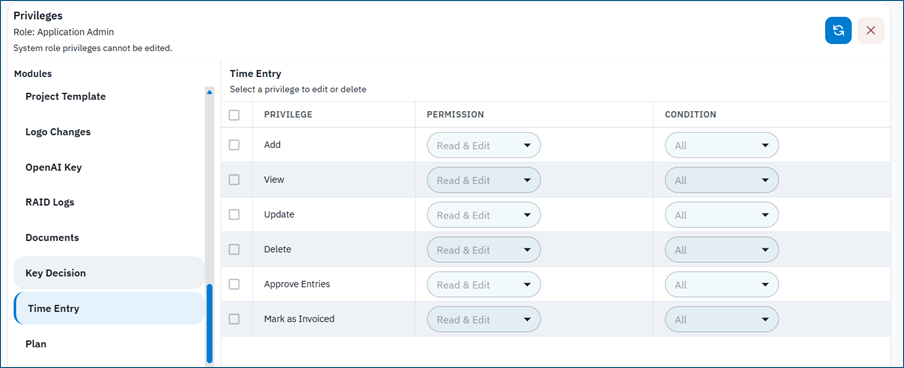
Time Entry uses role-based privileges and plan entitlement. Project features include View, Add, Update, Delete, Approve entries (candidate privilege), and Mark as Invoiced. Each may apply to All entries or Own entries. Runtime Approve/Reject still requires membership in the project’s Timesheet Approvers list. Mark as Invoiced typically needs Read & Edit with All.
If View is Hidden, users cannot open Time Entry. Add/Update/Delete further limit create and change actions and are constrained by entry status. Service Request time logging also respects Service Request time-entry privileges and ownership rules where the backend enforces them.
15. Validation and Common Messages
Select an Activity — Activity is missing on a project-level entry or estimate.
Enter or select a sub-Activity — Sub-Activity is required on project-level time entries.
Select a date / Future dates cannot be entered — date missing or in the future.
Time entries cannot start before this item was created / before hire or activation windows — date outside allowed range.
Hours must be at least 0.25 / cannot exceed 24 for a day (also enforced as a 24-hour total per user per calendar day across projects) / weekly maximum up to 168.
Assignment / eligibility messages — user must be an eligible SR assignee (or previous assignee) where required; inactive hire/activation windows block dates.
You do not have permission to edit this time entry — outside privilege or ownership scope.
Invoiced / Approved locks — edit or delete blocked by status until reverted when allowed.
Rejection comment is required — reject without a comment.
AMS contract message — Time Entry unavailable until the AMS contract is approved.
16. Notifications
Submission and approve/reject can notify users through the product notification channels. Bell notifications for Time Entry typically deep-link to the project Time Entry tab.
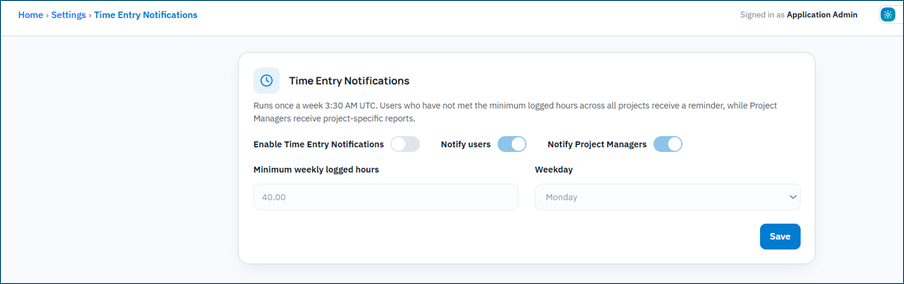
Administrators can configure Time Entry under-hours notifications (Settings). The feature is opt-in (off by default): enable alerts, notify users and/or project managers, choose weekday, and set a minimum weekly hours threshold (1–168, 0.25 steps). Eligible projects and a manual run for the prior Sunday–Saturday week may be available.
17. Recommended Usage
Use a specific Activity and Item so time traces to the project artifact that drove the work.
Use clear, consistent Sub-Activity names to improve reporting and reduce duplicates.
Log on the day work is performed; use Draft when you are still refining rows, then Submit for Approval.
Use Weekly entry or Outlook autofill for meeting-heavy weeks, then review before submit.
On Track Financials projects, confirm hours land on the correct Financial Plan tasks before approval.
Timesheet Approvers should review Pending promptly so Financial Plan actuals and billing views stay current.
Use Setup Estimates when the team needs planned-versus-actual tracking for important items.