Requirements Traceability Guide
User Guide
BriefSpec
1. Introduction
Traceability shows how project requirements connect to the work that validates and delivers them. In BriefSpec, the Traceability page lists Parent and Child requirements for a project. From any requirement (or from a Test Case), you can open a Mindmap or Swimlane view that expands linked Action Items, Test Cases, Test Cycles, execution results, Defects, Key Decisions, RAID Logs, and Scribe360 Functional Documents.
Use Traceability to confirm coverage, find gaps, and support reviews or audits. The page and mindmap are read-only: you view existing links; you do not create or remove links here.
2. Prerequisites
A project must contain requirements, and hierarchy should be set correctly on the Backlog so Parent and Child relationships appear on the Traceability page.
Hierarchy on a requirement
• Blank — standalone requirement; not part of a parent/child structure.
• Parent — umbrella or container requirement that can have children.
• Child — detailed requirement linked to a Parent through the parent requirement field.
Requirements created from a Statement of Work (SOW) are typically Parent, and hierarchy is locked for those records. Archived requirements are excluded from Traceability lists.
The Traceability parent list shows non-child requirements for the project (parents and blank standalones). Selecting a parent loads its children in the right-hand pane.
3. Accessing Traceability
From a project
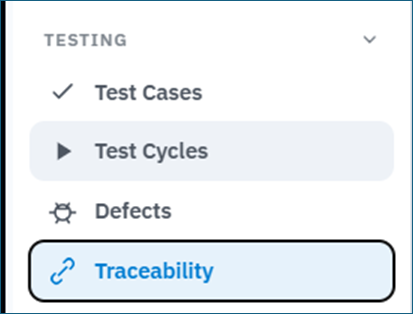
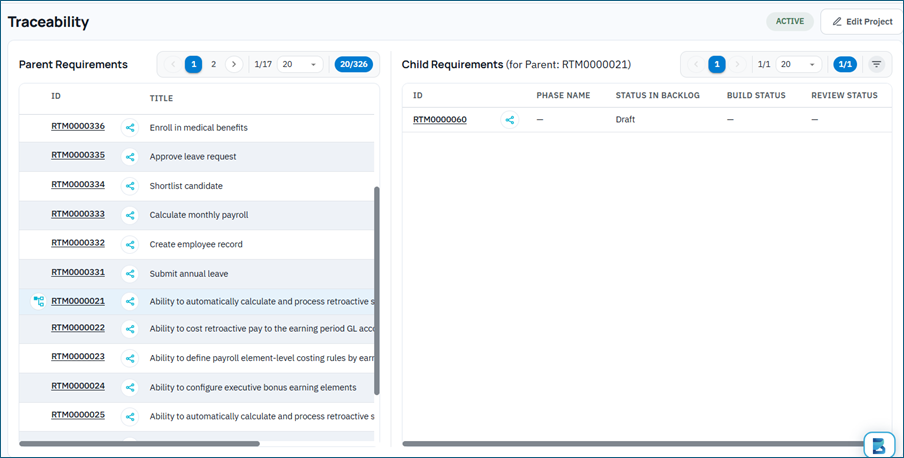
Open the project, then in the project sidebar under Testing select Traceability (link icon). The Traceability workspace opens with Parent Requirements on the left and Child Requirements on the right.
From Phase
On the Phase tab, each requirement row can open Traceability for that requirement (Open traceability). This opens a hierarchy-focused mindmap for the phase requirement. If the requirement has no database id, BriefSpec shows that Traceability is unavailable for that requirement.
From Test Cases
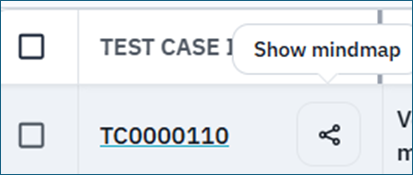
On the Test Cases tab, use Show mindmap next to a Test Case ID. The mindmap starts from that test case (not from a requirement). See section 8.
4. Understanding the Traceability Page
Parent Requirements (left)
Columns include:
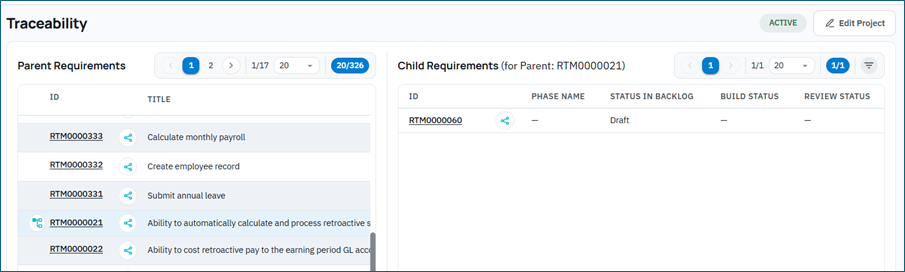
• ID — underlined link opens Requirement Details. If the parent has children, a View child control appears beside the ID.
• Mindmap — Open parent mindmap for that requirement.
• Title.
The first parent is selected automatically when the list loads. Use pagination and the page-size control (20, 50, 100, 200, 300, 400, or 500) to browse large backlogs.
Child Requirements (right)
The header shows Child Requirements (for Parent: …). Columns include ID (opens Requirement Details), mindmap (Open child mindmap), Phase Name, Status in Backlog, Build Status, and Review Status.
Until a parent is selected you see Select a parent requirement to view its children. Empty and loading messages appear when there are no rows or data is still loading.
Requirement Details
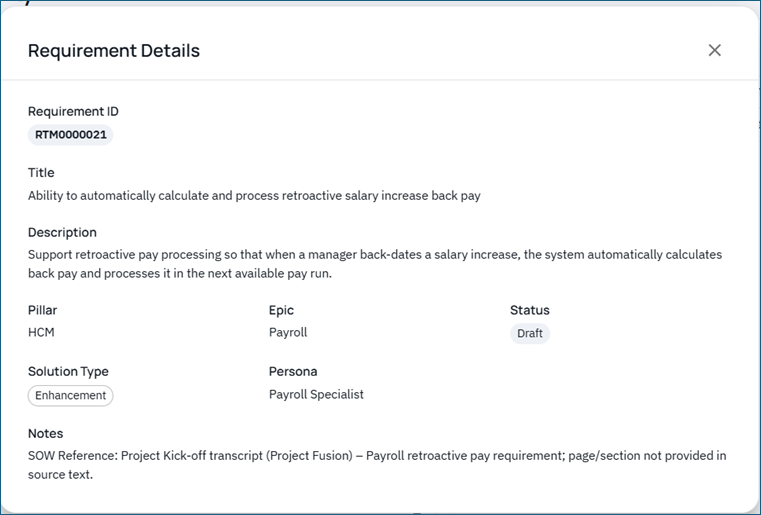
Clicking a requirement ID opens the Requirement Details dialog (pillar, epic/module, status, solution type, persona, notes, description or acceptance criteria, and related fields). This is separate from the mindmap.
5. Filtering Parent Requirements
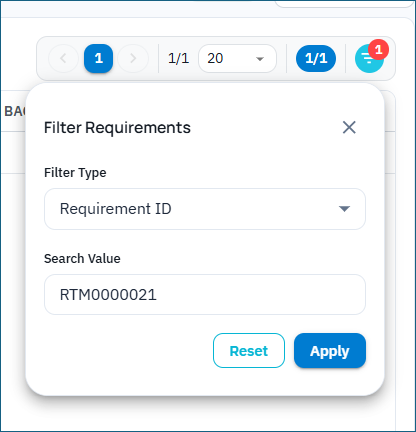
Open Filter Requirements from the filter control on the Traceability page. Choose a Filter Type, enter a Search Value, then Apply. Reset clears the filter. Applying with an empty value shows Please enter a search value.
Filter types:
• Requirement ID — matches story id (for example US…), RTM id (RTM…), or numeric database id; returns the related parent.
• Requirement Title — partial match on title; returns matching parents (or the parent of a matching child).
• Action ID — finds the requirement linked to that Action Item, then its parent.
• Testcase ID — finds parents linked through that test case.
• Defect ID — finds parents through the defect’s test case and requirement links.
Filters are applied by the Traceability API on the server and narrow the parent list. Applying or resetting clears the current parent selection and child list. While a filter is active, the filter icon shows a badge and Filter active tooltip.
6. Mindmap and Swimlane
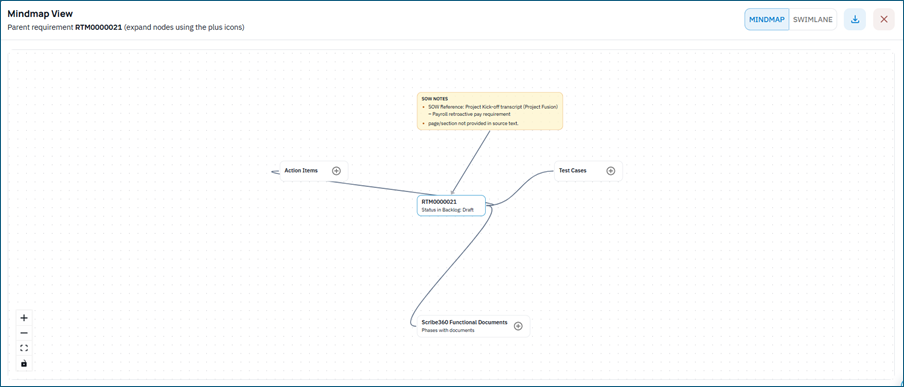
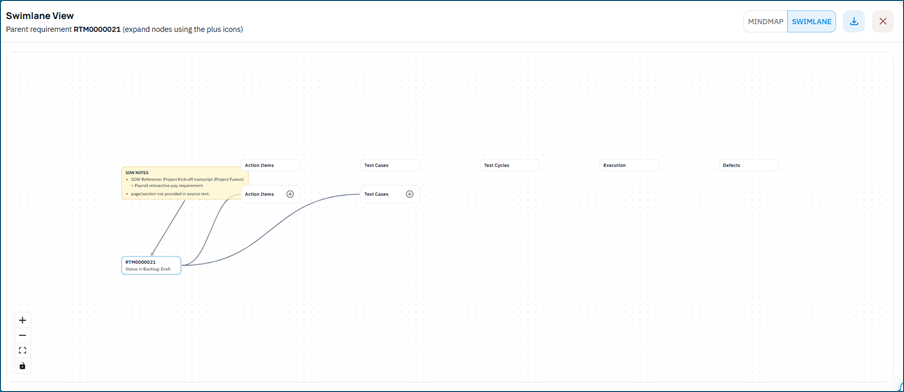
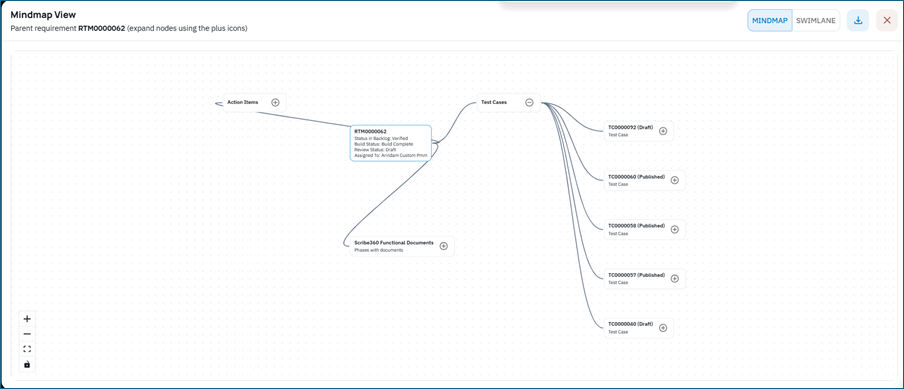
From a parent or child row, open the mindmap control. A large dialog opens titled Mindmap View or Swimlane View. Switch views with Mindmap / Swimlane in the dialog; the choice is remembered in this browser. Zoom and pan the canvas; hover a node for title or description. Expand or collapse branches with the plus and minus controls. Branches load when you expand them (lazy loading). Close the dialog with the Close (X) control.
Root node and status lines
The root is the selected requirement (or the test case when opened from Test Cases). Detail lines can include Status in Backlog (hidden in the Phase hierarchy view), Build Status, Review Status, and Assigned To or Client Reviewer.
For a child mindmap, the parent requirement appears above the root. For SOW-sourced parents, a SOW Notes box can appear (the notes node can be repositioned).
Expandable groups
From a requirement mindmap you can expand:
• Action Items — shown as ACT-… (status) with Assigned To. An action item can expand to its Key Decisions and RAID Logs.
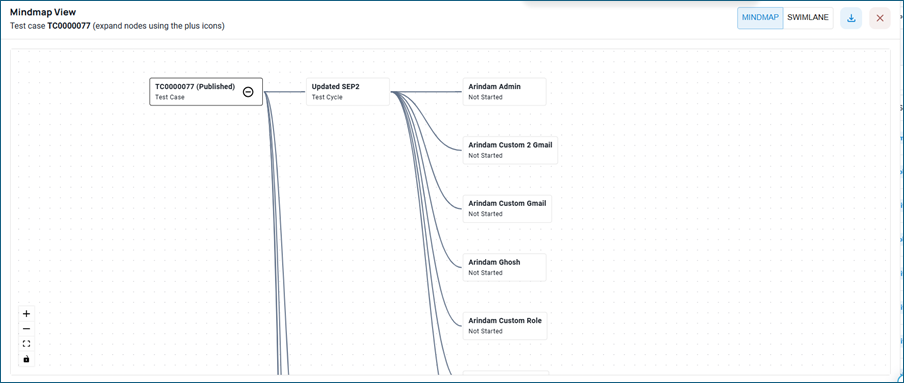
• Test Cases — TC-… (script status). Each test case expands to Test Cycles, then Execution (per tester, with Pass/Fail and related statuses), then Defects (DEF-… with status and assignee). A defect can expand to its Key Decisions and RAID Logs.
• Key Decisions and RAID Logs linked at requirement level (RAID entries show type and Owner).
• Scribe360 Functional Documents — grouped by phase, with document status.
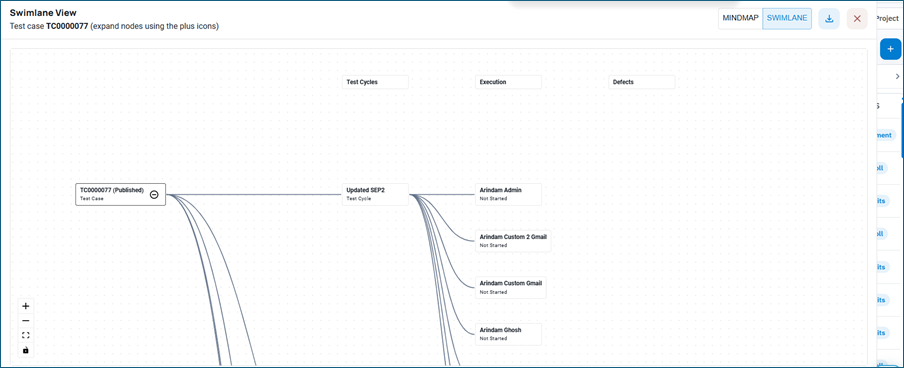
Swimlane columns align to these groups (for example Action Items, Test Cases, Test Cycles, Execution, Defects, Key Decisions, RAID Logs). Empty groups show messages such as No test cases or No defects.
Download as PDF
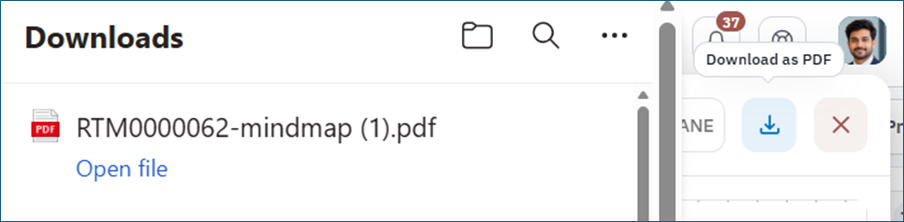
In the mindmap dialog, Download as PDF exports the current Mindmap or Swimlane view as a landscape A4 PDF (the control shows Generating PDF… while working). There is no CSV or Excel export on the Traceability tables themselves.
7. Phase Hierarchy View
When Traceability is opened from Phase, the dialog focuses on hierarchy: the phase requirement, immediate child requirements, and functional documents limited to that phase. Full Action Item / Test Case swimlanes used on the Traceability tab may not all appear in this mode.
8. Traceability from a Test Case
On the Test Cases tab, Show mindmap opens the same dialog with the test case as the root. You can switch Mindmap / Swimlane and Download as PDF. Hover the test case node for title details.
In this mode the graph does not attach requirement-level Action Items or requirement-level Key Decision / RAID groups from the test case root. Defect Key Decisions and RAID Logs still appear under the defect subtree when you expand execution and defects.
9. Permissions and Project Access
Traceability uses the project privilege View Traceability (feature key view-traceability). If the privilege is Hidden, the page shows that you do not have access to view Traceability.
Default role setup typically grants View to Test Admin, Project Manager, and Author, and hides it for Tester and client project roles. Your tenant may customize project role privileges.
The project must include Traceability in its plan entitlement (module_traceability), and the project setting to enable Traceability must be on (described as requirements Traceability and mindmap visualization).
10. How Lists and Links Are Loaded
BriefSpec loads Traceability from the project Traceability APIs. In short:
• Parent list — project requirements excluding hierarchy type Child and excluding Archived; supports the filter types above.
• Children — children of the selected parent requirement, with phase/build/review status when available.
• Requirement Details — full requirement record for the details dialog.
• Mindmap branches — Action Items, linked Test Cases, Test Cycles for a test case, Defects by test case/task, linked Key Decisions and RAID Logs, and linked Scribe360 Functional Documents. Branches fetch when expanded.
Because data is live from the project, coverage in the mindmap reflects what is already linked in Backlog, Test Cases, Test Cycles, Defects, Action Items, Key Decisions, RAID Logs, and Scribe360.
11. Recommended Usage
• Keep Parent/Child hierarchy accurate on the Backlog so Traceability panes stay useful.
• Use filters (especially Testcase ID, Defect ID, or Action ID) to jump to the parent that owns a linked item.
• Use Mindmap for exploration; use Swimlane when you want lane-aligned coverage for reviews.
• Export PDF from the dialog when you need a snapshot for a meeting or audit pack.
• Start from a Test Case when you are investigating a single script rather than a whole requirement.