Financial Plan Guide
User Guide
BriefSpec
Introduction
Financial Plan in BriefSpec helps you build and manage the staffing and hours plan for a project. You define planned tasks, assign individuals or Org Teams and hours, finalise a Baseline Plan to set the project budget, and maintain a live Forecast Plan that compares planned work to approved time actuals.
Financial Plan sits under the project Budgeting area next to Financials. Financials holds contract value, rates, invoices, and overall health. Financial Plan holds the task-level plan that drives budgeted hours, cost, and revenue.
This guide explains how to create a Financial Plan in a non-AMS project, build a Baseline Plan, finalise it, maintain the Forecast, assign Individual or Team owners, and connect time entry actuals. Managed Services (AMS) Contract and Regular/Premium rate features are covered separately and are not part of this guide.
Accessing Financial Plan
Open a project, then use the project sidebar group Budgeting and select Financial Plan.
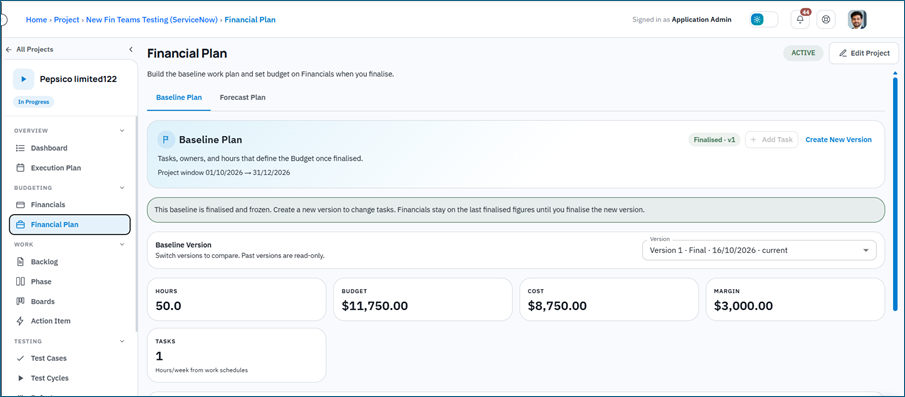
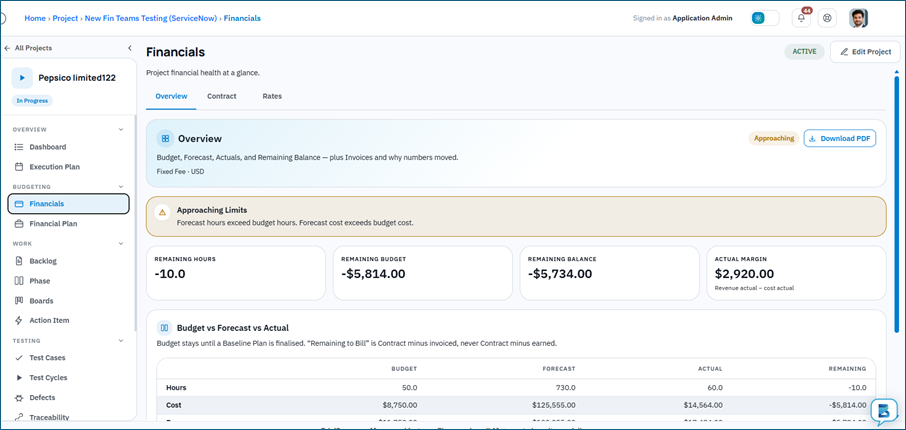
You will also see Financials in the same Budgeting group.
Use Financials for contract setup, rates, invoices, and budget health.
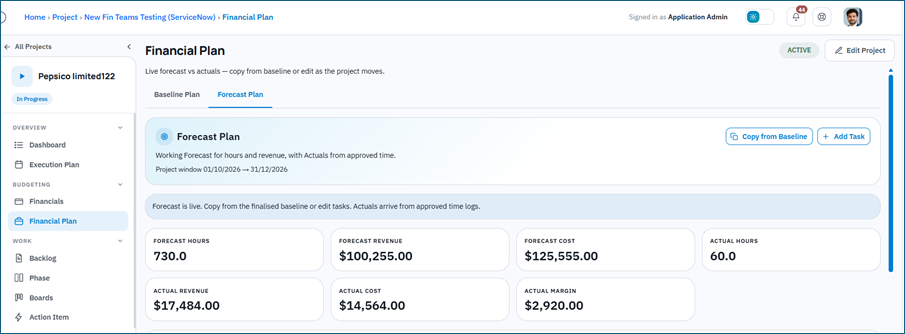
Use Financial Plan for baseline and forecast task planning.
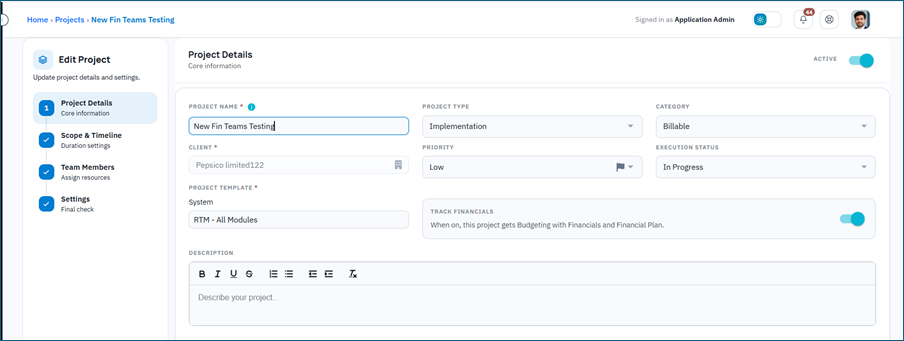
Important: Budgeting tabs appear only when Track Financials is turned on for the project, and the tenant plan includes Financial Projects (financial_projects). If you do not see Budgeting, edit the project and enable Track Financials first (or upgrade the plan if the toggle is plan-locked).
Do not confuse Financial Plan with Overview – Execution Plan. Execution Plan is for delivery planning. Financial Plan is for commercial staffing, hours, cost, and revenue planning.
Before You Start
Complete these setup steps before building a useful Financial Plan:
- Turn on Track Financials in project create or edit. You can change this later, but changing it on or off deletes existing time entries after save.
- Add project team members. Resources used in rates and plan allocations come from the project team. If you will use Owner = Team, also create Org Teams under Users > Team (plan entitlement team_management) and keep members Active.
- Confirm user billing details where needed. Bill defaults can be overridden on Financials – Rates from an effective date. Cost comes from the user billing record and cannot be edited on the project.
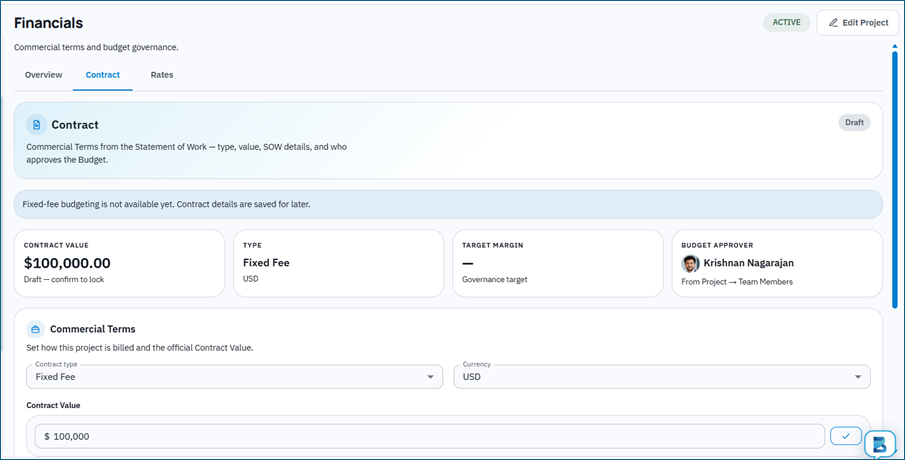
- Set up the contract in Budgeting – Financials. Time and Materials is fully supported for budgeting. Fixed Fee can be saved, but full fixed-fee budgeting is not available yet. Internal projects are non-billable: they hide money tiles and the Rates tab, and tasks are not billable.
- Make sure your role has Financial Plan privileges (financial-plan-view, financial-plan-add, financial-plan-update). Project Managers typically have these; for other roles they may be Hidden. Financials tabs use the related financials-view / financials-add / financials-update keys.
- Set the project start and end dates. Task and allocation dates must stay inside that window.
- Confirm the tenant work schedule under Settings – Work Schedule. Optionally set a user override on the person’s profile. Hours/week uses that calendar, not a project setting.
Key Concepts
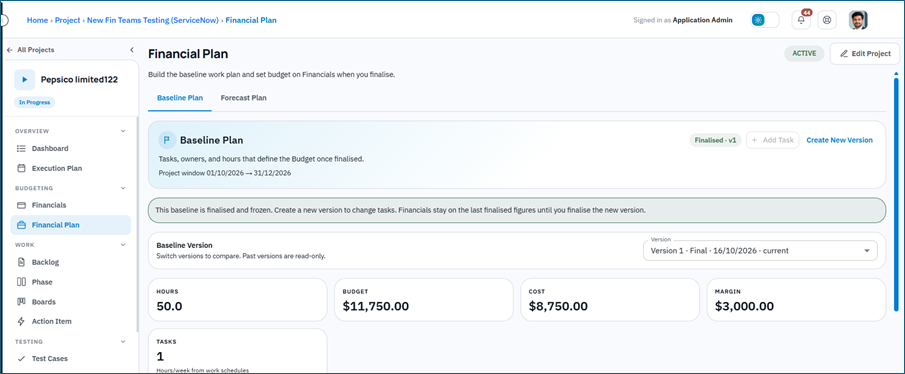
Baseline Plan
The Baseline Plan is your planned work model. When you Finalise it, BriefSpec writes budgeted hours, cost, and revenue into Financials. A version can be Draft (editable), Finalised (locked), Editing (a new version after finalise), or Read-only (a past version from the dropdown).
Forecast Plan
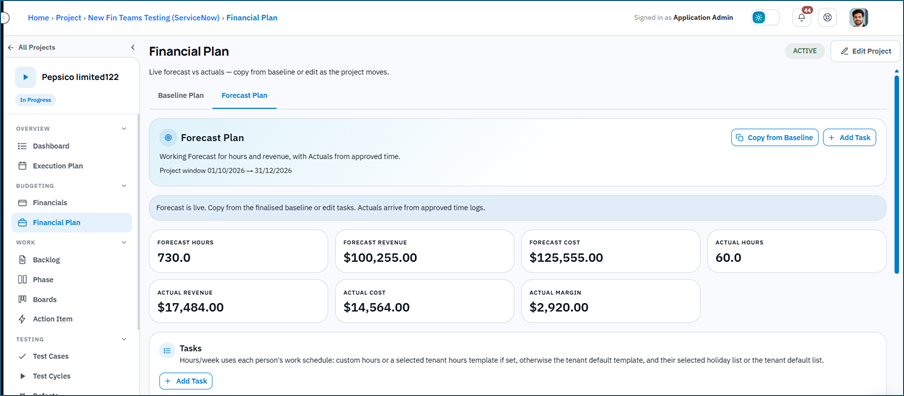
The Forecast Plan is the live working plan. You can Copy from Baseline after a baseline is finalised, adjust tasks and allocations, and compare forecast values to actuals from approved time entries. Copy from Baseline replaces all current forecast tasks.
Budget
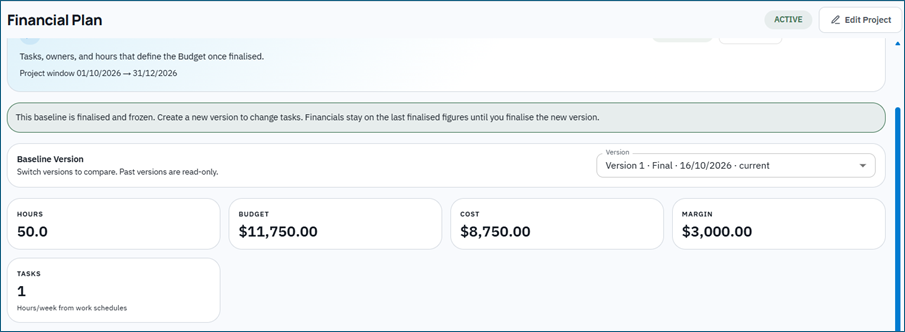
Budget figures on Financials come from the last finalised Baseline Plan. Creating a new draft baseline version does not change Financials until you finalise that new version.
Rates
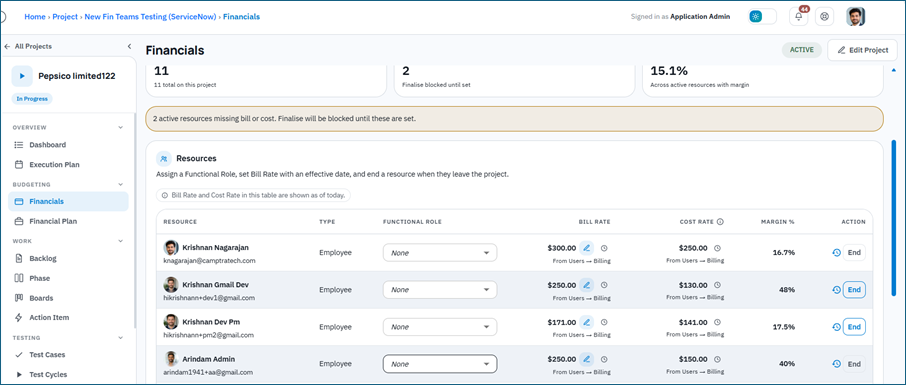
People appear as resources on Financials – Rates when they are on the project team. Bill rates can be overridden for the project from an effective date. Cost comes from the user billing record and cannot be edited on the project. An End date on a rate assignment clips Forecast hours only; the finalised baseline is not rewritten.
Actuals
Actual hours and spend come from approved Time Entry logs against Financial Plan tasks. Pending or rejected time does not move actuals. Approval is done by a Time Entry Approver, which is a different role from the Budget Approver.
Work Schedule
Hours/week capacity comes from Settings – Work Schedule (tenant default templates and holiday lists) or from a user’s Work Schedule override. It is not configured on Financial Plan.
Contract approval
If a Budget Approver is assigned, they approve commercial terms on Financials – Contract. That lock is separate from Finalise Plan, which writes the hours, cost, and revenue budget.
Building the Baseline Plan
Open Budgeting – Financial Plan and work in the Baseline Plan view.
Add tasks
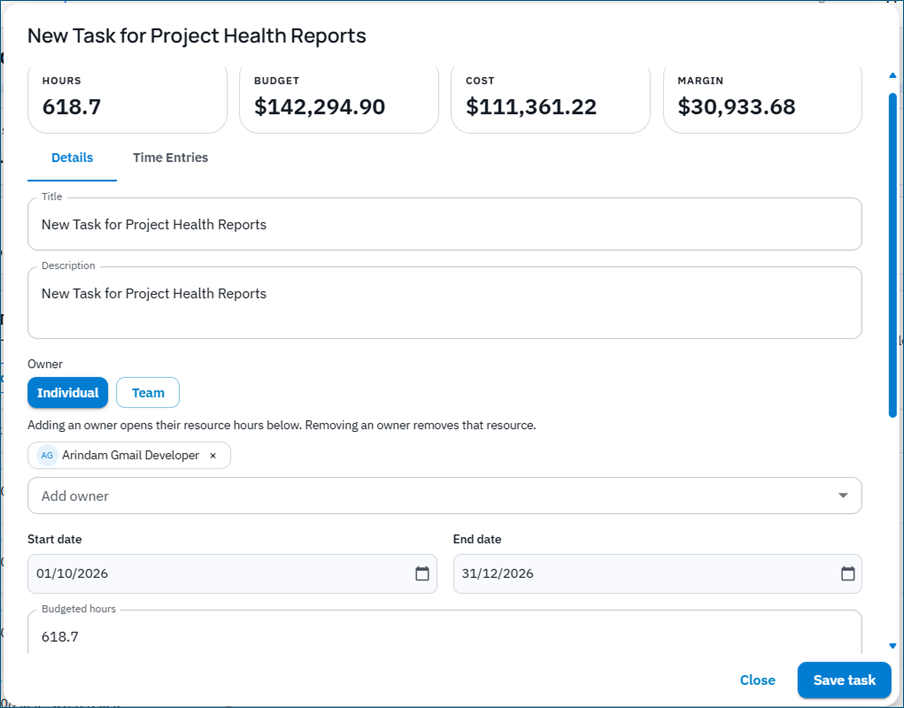
Use Add Task to create planned work items. Typical task details include:
- Title and description
- Start and end dates
- Whether the task is billable
- Whether the task tracks hours
- Owner mode – Individual (one or more people) or Team (an Org Team from Users > Team).
- Dates must stay inside the project start and end dates
- Track hours must stay on if people will log time against the task
Assign resources and hours
Add resource allocations to each task. For each person, choose Total hours, Hours/week, or Flexible. Hours/week uses the tenant work schedule under Settings – Work Schedule, or that user’s override on their profile. Holidays reduce planned hours. Flexible is a Saturday-to-Friday week grid; planned total is the sum of weeks (leave a week at 0 if unplanned). Total hours is a single planned total.
For Individual owners, choose the people who will perform the work and set their allocation dates and hours. Keep allocations inside the project start and end dates, and make sure bill and cost rates exist before you finalise.
Team owners (Org Teams)
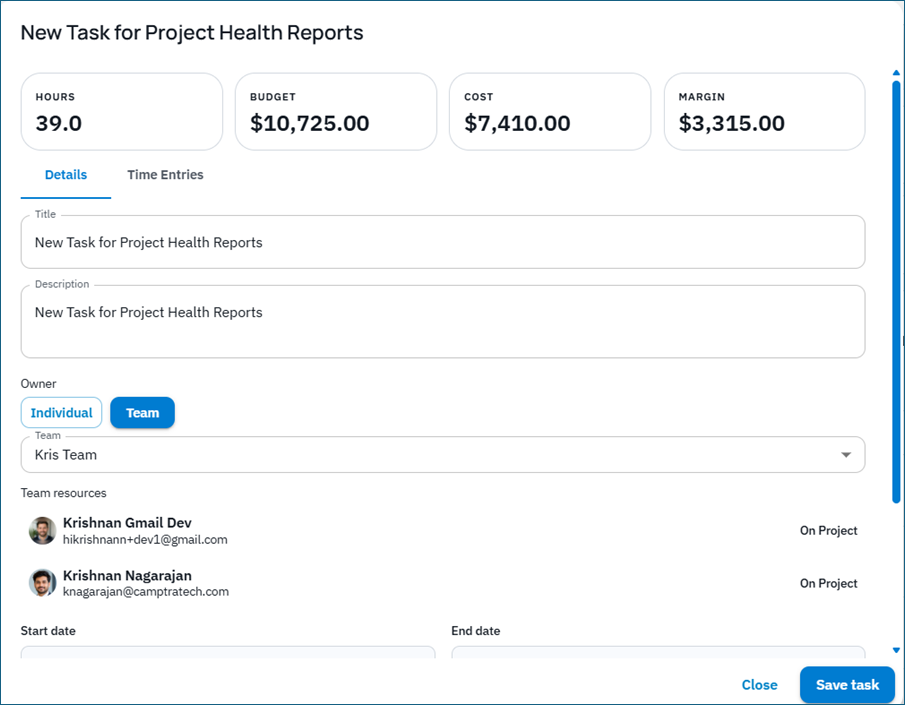
Set Owner to Team and pick an Active Org Team. BriefSpec lists team members and shows status chips such as On Project, Not on Project, Missing Rate, Client User, or Inactive. Client roles and inactive members are not eligible for plan hours. Members who are not on the project yet can be added with Add or Add All; when users are added this way, the project manager may be notified by email to review their bill rate and cost rate. Team ownership requires the team_management plan entitlement and eligible Active internal members with rates before Finalise.
Review draft totals
While the baseline remains in Draft, review the planned hours, cost, and revenue totals. Make sure the plan matches the commercial intent set on Financials before you finalise. Finalise Plan needs at least one task, resource hours on those tasks, and bill plus cost rates for every resource (Internal projects skip the rates check).
Finalising the Baseline Plan
When the Baseline Plan is ready, use Finalise Plan. Finalising locks that baseline version and updates budgeted hours, cost, and revenue on Financials. If Finalise is blocked, add a task, enter resource hours, or set missing bill and cost rates on Financials – Rates.
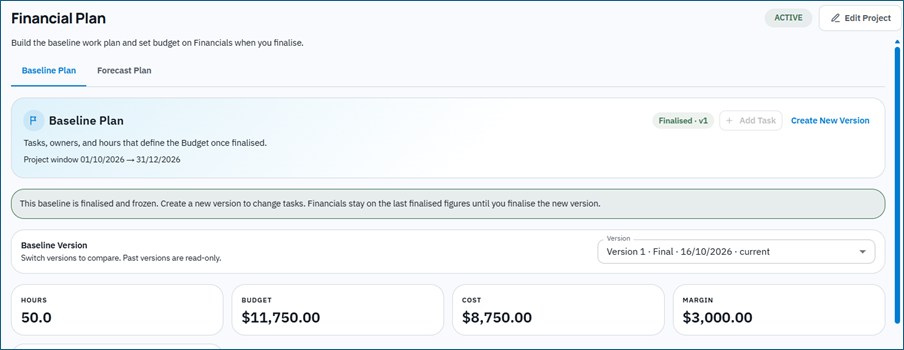
After finalisation the baseline is locked. Use Create New Version to edit again. A comment is required. The new version starts as Editing. Use the Baseline Version dropdown to compare; past versions are Read-only.
Important: Financials keeps the figures from the last finalised baseline until a newer version is finalised. A draft revision alone does not change the live budget.
Create New Version does not change Financials. Only Finalise Plan on the new version updates the live budget.
Working with the Forecast Plan
Switch to Forecast Plan when you want to manage the live outlook for remaining work.
Common forecast actions include:
- Copy from Baseline to start from the finalised baseline. This requires a finalised baseline and replaces all current forecast tasks.
- Edit tasks, dates, and allocations as the project evolves.
- Compare forecast values with actuals from approved time.
- Open a task Time Entries view to see related logs. That view is read-only; create hours from Project Admin – Time Entry.
If a resource assignment ends on Financials – Rates, forecast allocations may be clipped to that end date. The finalised baseline is not rewritten by that change.
Connecting Time Entry Actuals
Team members log time from Project Admin – Time Entry. On projects with Track Financials enabled, choose the Financial Plan activity and pick a Financial Plan task that has Track hours turned on. New logs start as Pending. The Time Entry list defaults to this week and My Entries.
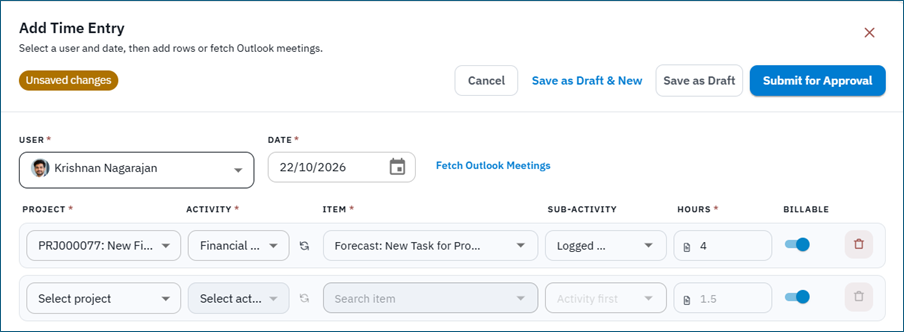
Only approved time counts toward actuals on Financial Plan and Financials. Pending or rejected entries stay out of spend until they are approved. A Time Entry Approver approves hours; that is not the same person as the Budget Approver unless you assigned both roles.
Use this loop to keep the plan honest: update forecast as scope changes, approve timesheets promptly, and review remaining budget and health on Financials.
How Financial Plan Relates to Financials
You usually work both tabs together:
- Financials – Contract: set contract type, currency, contract value, optional not-to-exceed, and the Budget Approver workflow. This locks commercial terms. It does not write the hours, cost, or revenue budget.
- Financials – Rates: confirm bill and cost rates for project resources.
- Financial Plan – Baseline: define planned tasks and use Finalise Plan to write budgeted hours, cost, and revenue. This is separate from contract approval.
- Financial Plan – Forecast: manage the live plan and compare to approved actuals.
- Financials Overview: track invoices, remaining to bill, and budget health.
If a Budget Approver is assigned, contract value may need submission and approval before commercial terms are locked. The selected approver can Approve, Reject, or Self Approve a draft. Editors may Withdraw a pending submission or Return to Draft an approved contract when their privileges allow it. Budget Approver review and Finalise Plan are independent.
Tips for Better Results
- Enable Track Financials, set project dates, confirm the work schedule, confirm rates, and (if using Team owners) confirm Org Teams and membership before building a large baseline.
- Keep task names clear and leave Track hours on so people can pick the right Financial Plan task when logging time.
- Finalise the baseline only when the plan is ready to become the project budget.
- Use Forecast for day-to-day changes. Use Create New Version when you intentionally revise the approved plan of record, then Finalise again.
- Approve time regularly so Forecast actuals and Financials health stay current.
- You can ask BriefBot read-only questions about financial plan overview, contract, rates summary, baseline, forecast, and Financial Plan time actuals when your role has view access.
Important Notes
Changing Track Financials on or off for a project that already has time entries deletes those time entries after save. Confirm carefully before changing that setting.
Fixed Fee contracts can be stored, but full fixed-fee budgeting is not available yet. Internal contracts are non-billable: there is no Rates tab, money tiles are hidden, and tasks cannot be billable. AMS (Managed Services) projects use different Budgeting tabs (Dashboard, Usage, Opening Months, Contract) with Regular/Premium rates and Contract max – those flows are outside this Financial Plan guide.
Important: Always review Baseline totals before you Finalise Plan. Finalising updates the Financials budget and becomes the commercial reference point until a later baseline version is finalised. Finalise is blocked until tasks, resource hours, and required rates are in place.