Defects track everything that needs fixing during testing and beyond. Each defect flows through a structured workflow from identification to resolution. This guide walks through each numbered section.
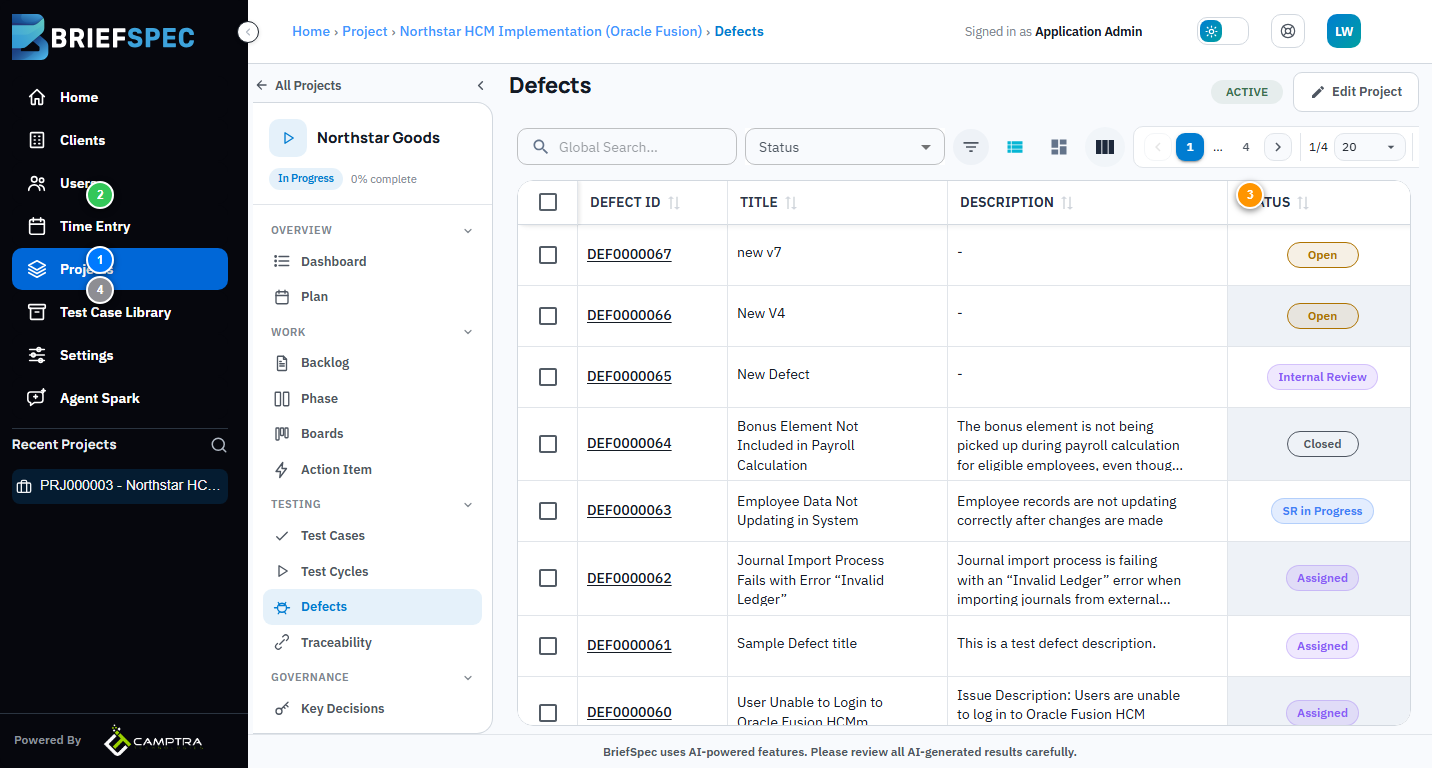
① Defect Table
The table shows Defect ID, Title, Description, Status, and Assigned To. Click any column header to sort. Each row is clickable — select the Defect ID to open the full detail view with history, comments, and attachments.
② Search & Filter
Use the Global Search bar to find defects by keyword. The Status dropdown filters by workflow stage: Open, In Progress, Internal Review, Resolved, Closed, and more. Use Advanced Filters for granular queries across multiple fields.
③ Views & Bulk Actions
Toggle between List View and Kanban View — the Kanban board lets you drag defects between status columns. Use Show/Hide Columns to customize your table. Click Add Defect to create a new defect manually, or use Import to bring in defects from a spreadsheet.
Defect Workflow
Defects move through statuses: Open → In Progress → Internal Review → Resolved → Closed. Each status change is logged with a timestamp and user. Assigned testers can retest resolved defects and either close them or reopen them with notes.