Service Request Management Guide
User Guide
BriefSpec
Introduction
Service Requests are a key feature in BriefSpec for capturing, tracking, and resolving customer and project support needs. They help teams log incidents, questions, enhancements, and general service items in one place, assign ownership, and monitor progress through resolution and closure.
Each service request belongs to a project and can be created manually or with AI assistance. Once created, service requests can be viewed in a list or Kanban board, filtered, exported, imported, updated individually or in bulk, worked with sub activities and time entries, and optionally created or updated by inbound email – depending on your role and permissions.
This guide explains how to open Service Requests from the project workspace, create requests (quick panel and AI), manage the list and Kanban views, import/export, use detail tabs including Sub Activities, reopen closed requests, and which privileges apply.
Creating Service Requests
A project must already exist, with the Service Requests module active on its template. Your plan needs module_service_requests entitlement.
Users with the appropriate project role and feature permissions can create service requests (service-requests-add). Typical roles with access include Application Admin, Project Manager, and other roles your tenant configures. Many SR actions default to Hidden in the privilege catalog until an administrator enables them.
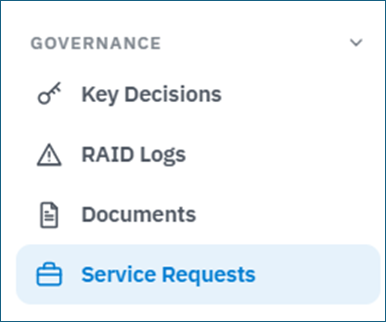
Open a project, then in the project sidebar open Governance > Service Requests. The module must be active on the project template, your role needs service-requests-view, and your plan must include module_service_requests.
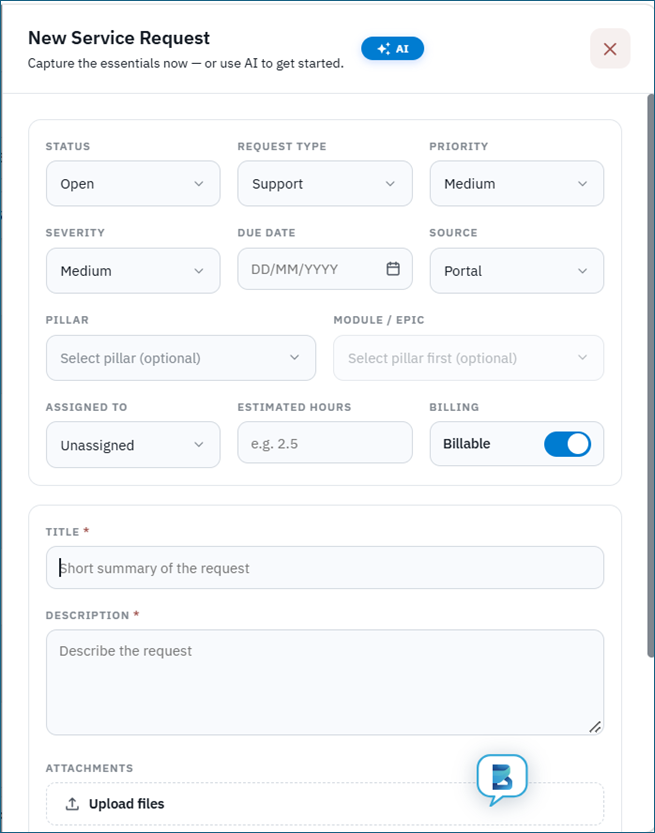
Click Add Service Request. A slide-in New Service Request panel opens (primary create path). You can also open the full create page (Manual / AI tabs) at edit-service-request/new when needed.
Service requests can be created in the following ways:
- Manual Creation
- AI Creation
Manual Creation
For manual create in the quick panel (or the Manual tab on the full create page), the system defaults Status (typically Open/New from the project template), Request Type Support, Priority/Severity Medium, Source Portal, and Billing Billable. Requester is set from your account. Complete required Title and Description, plus Pillar and Module / Epic when your project uses software hierarchy, then click Create Service Request.
Pillar
The high-level software area (software / pillar) the request relates to. Select the value that matches the affected platform in the project scope.
Module / Epic
The functional Module / Epic under the selected Pillar. Used to route and categorize the request in the project software hierarchy (API: software / module_epic).
Status
Status options come from the project template Service Requests module (not a fixed global list). New requests typically default to Open or New when those labels exist. Closed and Reopened have special UI rules (see Closed and reopening below).
Request Type
Classifies the nature of the request. Options include Support, Incident, Service Request, Enhancement, and Question.
Priority and Severity
Priority indicates how urgently the request should be handled. Severity indicates the business or technical impact. Both use levels such as Low, Medium, High, and Critical.
Due Date
The target date by which the request should be addressed. Due dates must be today or a future date.
Source
Where the request originated. Sources are loaded from your tenant (service-request-sources); the UI defaults to Portal when available.
Assigned To
The team member responsible for working the request. You may leave this unassigned when creating the request and assign it later from the list view.
Estimated Hours
Estimated Hours captures the expected effort to complete the request.
Billing
Billing indicates whether the work is Billable or Non Billable.
Title and Description
Title is a short summary of the issue or need. Description provides the full details. Both fields are required. You may also attach files when creating the request.
Attachments
You can upload relevant documents when creating or later on the Attachments tab (privilege: service-requests-attachments).
After completing the fields, click Create Service Request. Success toast: “Service request created.” Project billing limits can disable Add/Import when the project billing status blocks new requests.
AI Creation
Click the AI pill in the New Service Request panel header (or open the AI tab on the full create page). The AI Assistant guided chat walks you through drafting a complete service request.
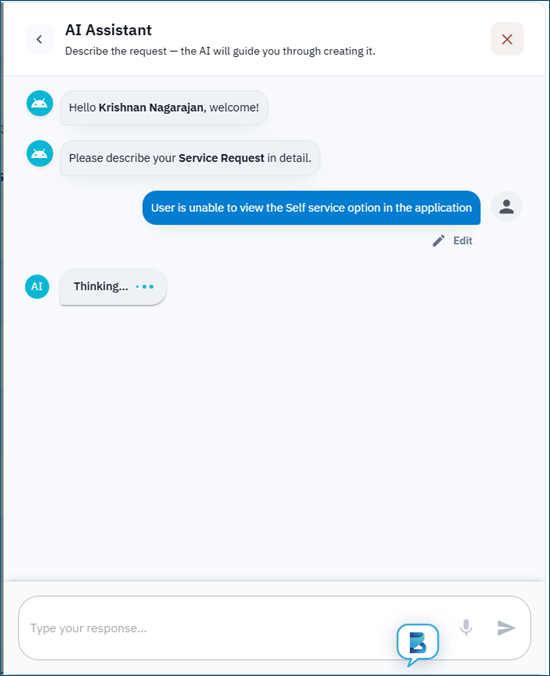
The AI flow typically confirms Pillar and Module / Epic, captures your description, and drafts Title and Description. Optional steps can include Request Type, Priority, Severity, and Attachments. Note: the AI request-type list uses Incident, Service Request, Enhancement, and Question (Support is the manual default, not offered in the AI type list).
Type responses (speech-to-text where available). Remaining prompts depend on AI step flags; Due Date, Source, Assignee, Estimated Hours, and Billing steps may be off by default.
Attach supporting files when prompted. Review the summary and confirm to create the service request.
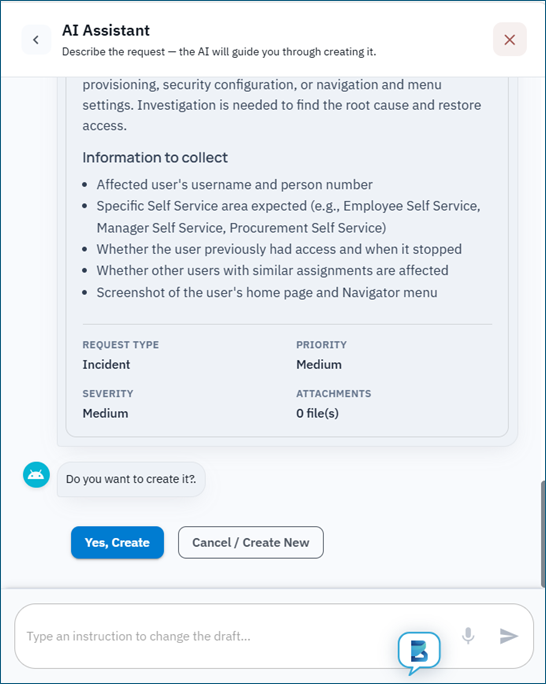
After creation, the panel closes and the Service Requests list refreshes.
Viewing and Managing Service Requests
All service requests for the project appear under Governance > Service Requests. Use Global Search… to find by ID, title, or other fields. Filter by Status from the toolbar (All Status / Select All).
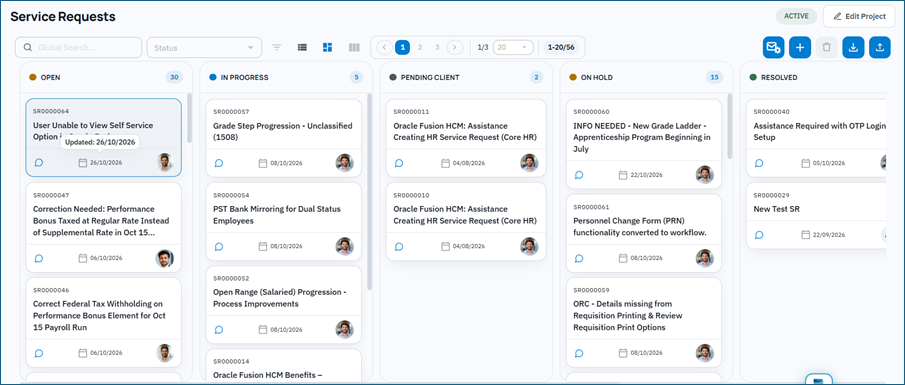
Switch between List View and Kanban View using the toolbar icons. List View is a sortable table with configurable columns (Request ID, Title, Description, Status, Created On, Type, Priority, Severity, Assigned To, Sub Activity Count, Pillar, Module, Source, Due Date, Requester, Est. Hours, Actual Hours, Billing, and custom fields). Kanban groups by template status; drag a card to change status. Advanced Filters apply to list view only.
Below is a Kanban view of service requests.
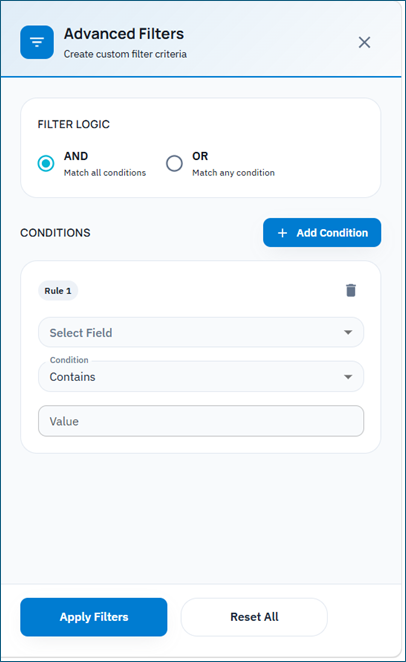
Use Advanced Filters (list view) for Status, Priority, Assignee, Type, Pillar, Due Date, Created By, Created Date, and custom fields. Active filters appear as chips and can be cleared individually or all at once.
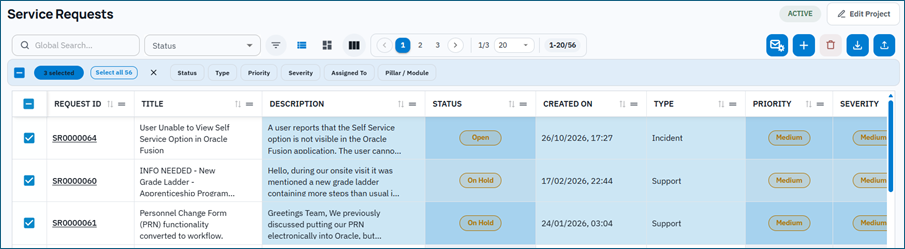
Select one or more rows for bulk update (Status, Priority, Due Date, Assignee / unassign, Pillar, Module / Epic, and similar). Closed rows in the selection limit status choices to Reopened when nothing else is editable.
Use Export Selected or Export All (privilege: service-requests-download) to download service requests.
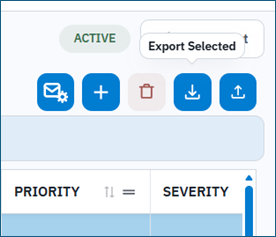
The exported file includes the service request details for the selected or visible set.

Import service requests in bulk from an Excel (.xlsx, max 2 MB) file via Import Service Requests (privilege: service-requests-import). Download the sample template (sheet Service Requests) for required columns such as Title*, Description*, Status, Priority, Severity, Request Type, Source, Pillar, Module / Epic, Requester Email, Assigned To Email, Estimated Hours, Billing, Due Date.
The Import Service Requests dialog opens.
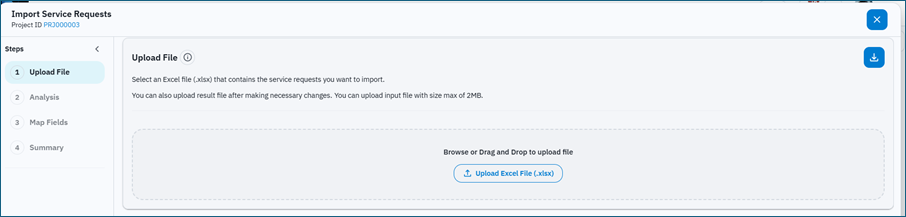
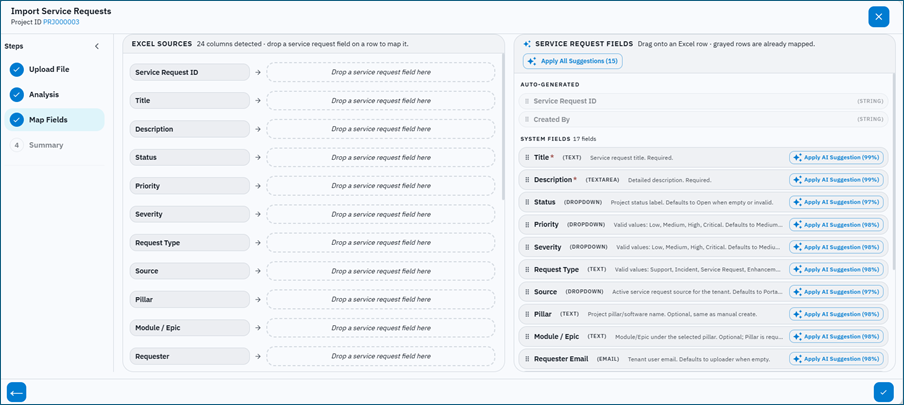
Upload the file. The app analyzes columns and proposes mappings. Accept AI suggestions or map fields manually.
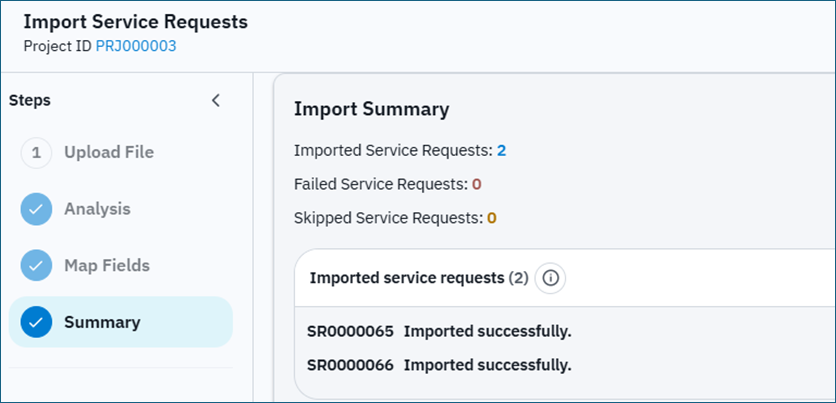
When import finishes, review the final status (created / skipped / errors).
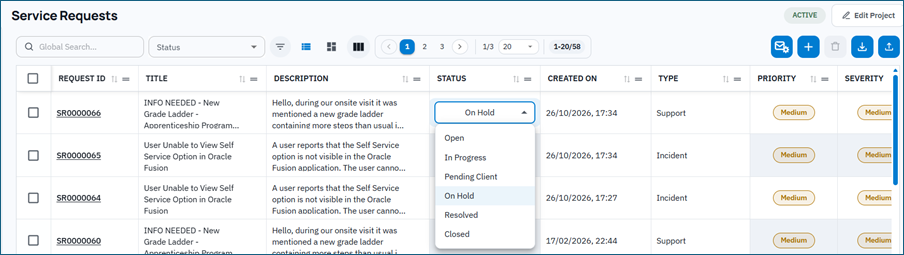
Inline Editing SR details
Some List View columns support inline editing when you have service-requests-update (and Own/All conditions). Closed requests are largely locked until reopened.
Service Request Details
Open a row to the Service Request detail page. Tabs depend on privileges and configuration:
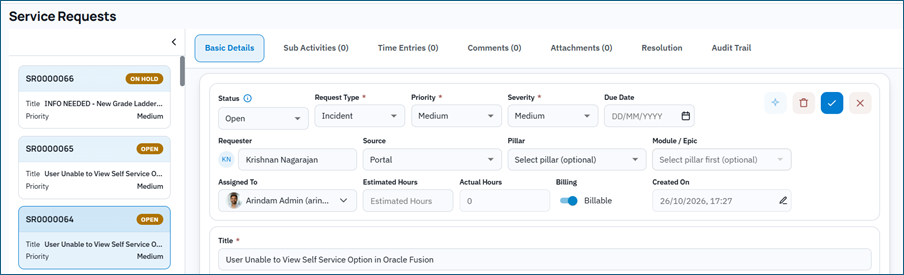
Basic Details
Main fields: Status, Request Type, Priority, Severity, Assignment, Pillar, Module / Epic, Title, Description, Estimated Hours, Billing, Source, Due Date, and custom fields. Click Save to persist. From this page you can also Generate Knowledge Article when article privileges allow create from service_request.
Sub Activities
Break work into Sub Activities (Add Sub Activity). Columns include Sub Activity ID, Name, Description, Start/End Date, Duration, Assigned To, Status (Not Started, In Progress, Completed, Blocked, On Hold), Estimated Hours, Actual Hours, Billable, and Actions. Parent Assigned To can be blocked while sub activities exist – assign users on each sub activity instead. Privileges: service-requests-sub-activities-view/add/update/delete/assign-user/download (sync SR privileges if these keys are missing).
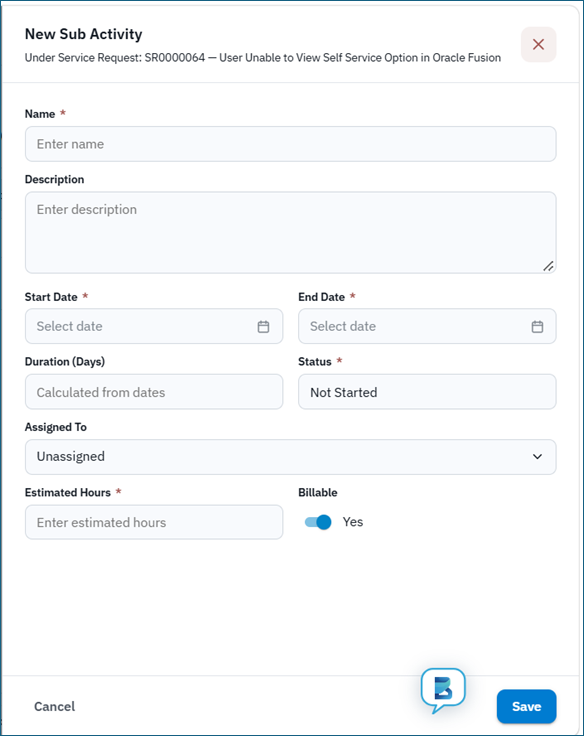
Time Entries
Log time with Add Time Entry (privilege: service-requests-time-entry). Draft and Rejected hours appear in the list but are excluded from totals. Actual Hours reflects approved (and related) entries; summary cards show Billable / Non-Billable.
Comments
Add / View Comments (privilege: service-requests-comments). Comments are the discussion thread for the request.
Attachments
Upload, view, and download files (privilege: service-requests-attachments).
Resolution
Record Resolution Type, Root Cause, Resolved On, and Resolution Summary (privilege: service-requests-resolution). AI draft of resolution comments uses service-requests-regenerate-with-ai and requires tenant AI to be enabled.
Audit Trail
Chronological history of changes and actions (privilege: service-requests-activity).
Create, update, and comment by email
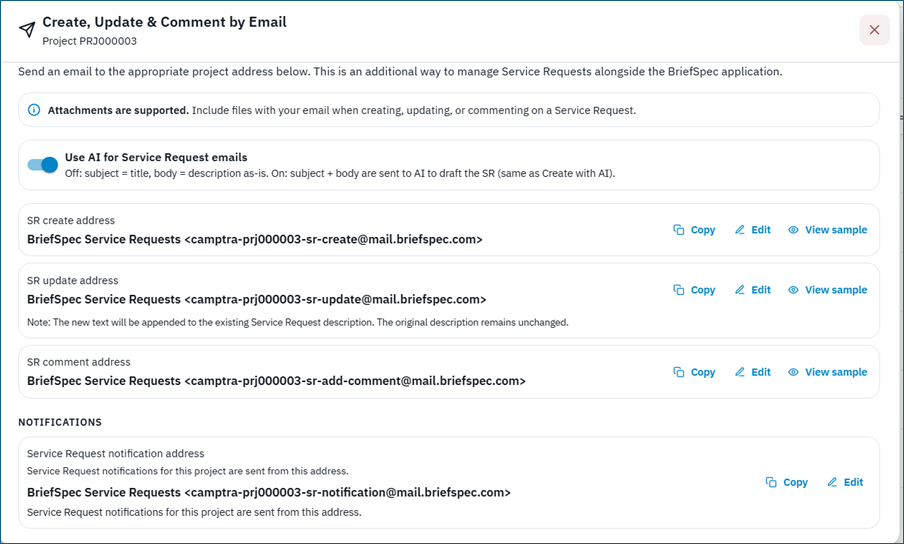
On the Service Requests toolbar, use Create, Update & Comment by Email to view dedicated addresses: SR create address, SR update address, and SR comment address. Subjects can reference an existing ID (for example SR0000014). When allowed, inbound email can use AI (can_update_inbound_email_use_ai).
Privileges (Service Requests module)
Key privilege keys: service-requests-view, -add, -update, -assign-user, -delete, -comments, -attachments, -activity, -time-entry, -import, -download, -create-with-ai, -regenerate-with-ai, -resolution, plus sub-activity keys above. Many features support All vs Own (owner = creator or current assignee). Legacy aliases such as add-service-requests still match in the UI.
Assignment and close rules
Assign requires service-requests-assign-user. Creating a sub activity may require the parent to be unassigned first; with sub activities, assign users on each child. You cannot close a request while sub activities are incomplete.
Use Save (or Reopen when unlocking a closed request), cancel/back to the list, or delete when permitted. Only Open service requests can be deleted (eligibility API).
Closed service requests cannot be edited until you choose Reopened in Status and click Save / Reopen (hint: “Choose Reopened in Status to unlock this service request”). Closing can be blocked if sub activities are incomplete.
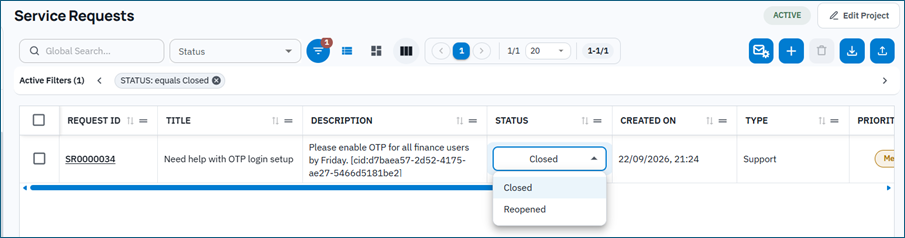
All saved service requests remain under Governance > Service Requests for tracking, reporting, and follow-up.