Test Cases are where you define how you’ll verify that everything works. Each test case links to one or more requirements and can be grouped into test cycles for organized execution. This guide covers the Test Cases page layout and how to navigate it.

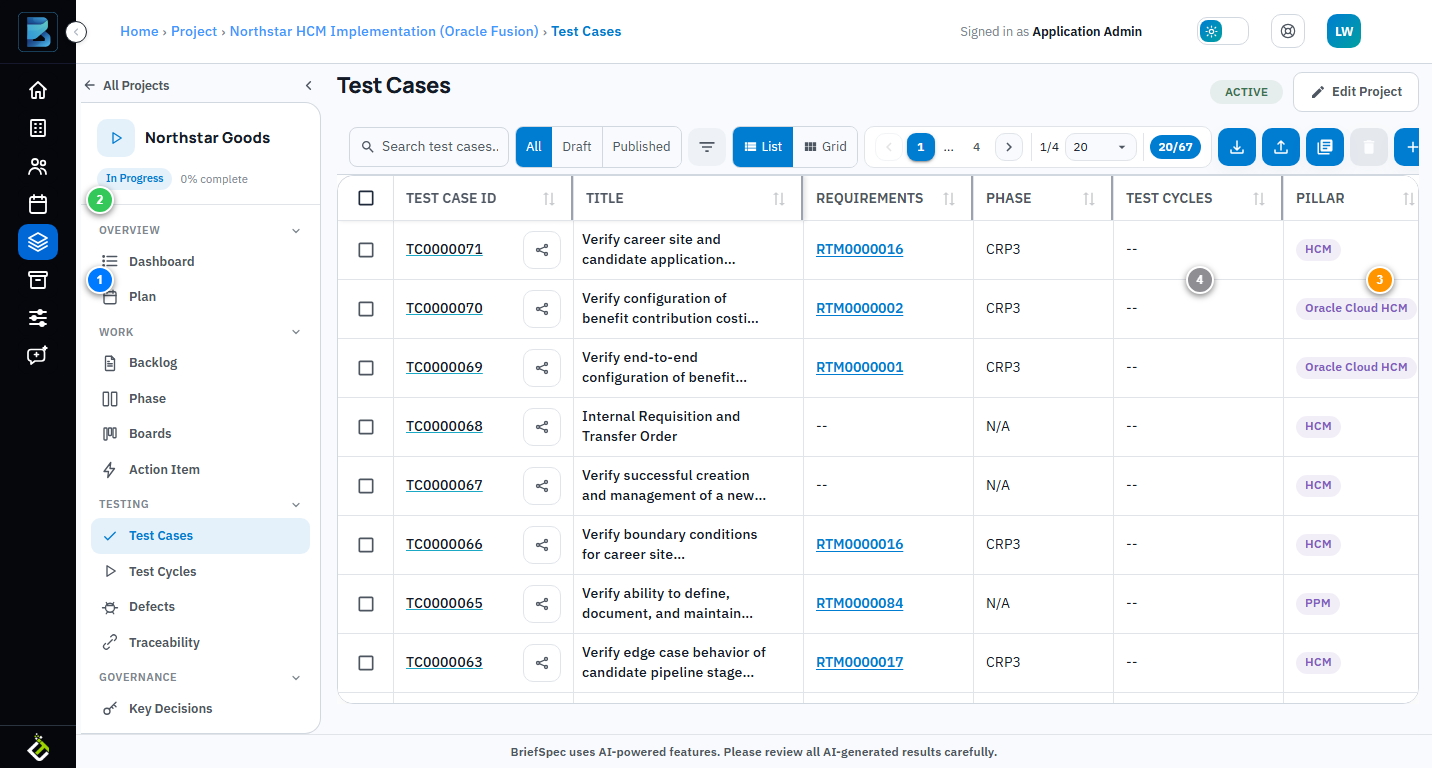
BriefSpec Test Cases page showing test case table with columns and toolbar
The Test Cases page. Each row represents a test case linked to its requirements, phase, and current status. Use the toolbar to filter, search, and switch views.

Test Case Table Columns

  • Test Case ID — A unique identifier (e.g., TC0000070). Click to open the full test case detail page.
  • Title — The name or summary of what this test case verifies.
  • Requirements — The linked requirement IDs. Click any requirement to jump to its detail page. This is the core of traceability — every test case traces back to what it’s verifying.
  • Phase — Which project phase this test case belongs to (e.g., CRP3, Test Phase 1).
  • Test Cycles — The test cycles that include this test case. A test case can belong to multiple cycles.
  • Pillar — The functional area (e.g., Oracle Cloud HCM).
  • Epics/Modules — The specific module or epic within the pillar (e.g., Benefits, Core HR).
  • Status — Draft, Published, or other statuses reflecting where the test case is in its lifecycle.

Toolbar Controls

  • Search — Find test cases by ID, title, or linked requirement.
  • Quick Filters — Toggle between All, Draft, and Published to see test cases at specific stages.
  • List / Grid views — Switch between a traditional table and a card-based grid layout.
  • Export / Import — Download test cases to Excel or import from a spreadsheet.
  • Reports — Generate test case reports for sharing or review.
  • Add Test Case (+) — The blue button creates a new test case.

Row Actions

Each row gives you quick access to:

  • Info icon — A popup with key details without leaving the table.
  • Three-dot menu — Additional actions like edit, duplicate, or delete.
  • Checkbox — Select multiple test cases for bulk actions (status changes, assignments, exports).

Linking to Requirements

The Requirements column is the critical link — it connects each test case to one or more backlog requirements. This feeds directly into the Traceability (RTM) matrix, which shows you exactly which requirements have test coverage and which don’t. A test case with no linked requirement won’t appear in your traceability view, so always make sure to link them.

Status Workflow

Test cases typically move through: Draft → Published. Once published, they can be added to test cycles and executed. Results are tracked per test cycle, not on the test case itself — a single test case can pass in one cycle and fail in another as the software evolves.