When you reach out to BriefSpec support, the app can open your email client with a pre-addressed message to our support team. You get to choose which email app opens — Gmail, Outlook, or your system’s default email client. This one-time preference is small, but it removes a small bit of friction every time you contact support, and it’s worth setting correctly once.
Prerequisites
No special role or plan is required. The email client preference is a per-user, per-device setting stored in your browser. Note that it applies to the device you’re on — set it on each machine you use if you want a consistent experience.
Where the Preference Lives
The setting appears inside the Email Support dialog, which you open from the support icon (the life-ring/headset icon) in the top bar, next to the theme toggle:
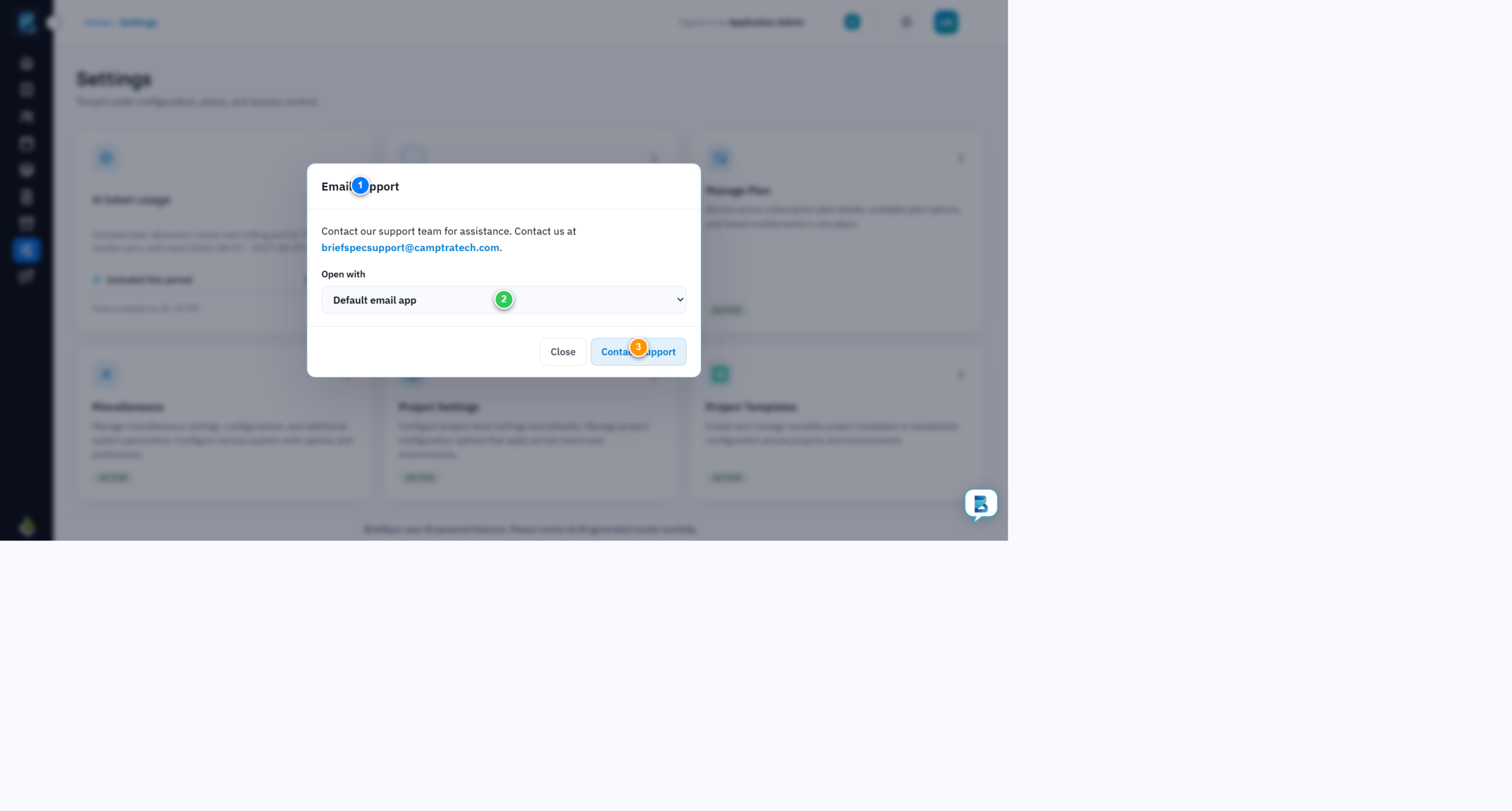
- Dialog title (1) — confirms you’re in the support contact flow. The dialog also shows the support address your message will be sent to.
- Open with (2) — the dropdown that controls which email client opens. This is the preference this guide is about.
- Contact Support (3) — opens your chosen email client with a new message pre-addressed to support.
Choosing Your Email Client
The Open with dropdown offers three options:
- Default email app — uses your operating system’s default mail handler (e.g. Apple Mail, Windows Mail, Thunderbird, or whatever you’ve configured). This is the default and the right choice if you don’t use webmail.
- Gmail — opens a compose window in Gmail’s web interface (mail.google.com), pre-addressed to support.
- Outlook — opens a compose window in Outlook’s web interface (outlook.live.com), pre-addressed to support.
Select the option that matches how you actually read and send email. If you live in Gmail, pick Gmail; if you use a desktop client, leave it on Default email app. The choice only affects how the support compose window opens — it doesn’t change anything else about your BriefSpec account.
Why This Matters
This is a “set once, forget it” preference that removes friction at the exact moment you’re already frustrated enough to contact support. When you hit a billing question or a bug during a go-live, the last thing you want is to hunt for your email app or manually type out the support address. With the right client selected, Contact Support takes you straight into a pre-addressed compose window.
It’s also a reminder that BriefSpec stores preferences locally and per-user: your email client choice is yours alone, and it follows the device rather than the account. If you sign in on a new laptop, re-select your preference once and it’s set for that machine.
What’s Next
- Switch between light and dark themes to further personalize your workspace.
- Manage your profile to update your name, photo, and contact details.
- Manage your plan & subscription to review billing, utilization, and add-ons.