BriefSpec Agent Spark Guide
User Guide
Introduction
BriefSpec Agent Spark is an intelligent Project assistant available from the left hand side menu. It helps users ask natural language questions about Project data and receive concise answers, tables, insights, charts, and downloadable files where supported.
The assistant is designed for Project intelligence across BriefSpec. It can help users understand Project health, requirements, phases, phase requirements, defects, service requests, action items, key decisions, RAID logs, time entries, test cycles, test cases, comments, and dashboard analytics.
BriefSpec Agent Spark uses the signed-in user’s tenant, role, project access, and feature permissions. It answers user queries using only the data that the user is allowed to access.
Accessing BriefSpec Agent Spark
Open BriefSpec and select “Agent Spark” from the left hand side menu. In the expanded Left Hand side menu, the option appears with the label Agent Spark. In the collapsed menu, it appears as an icon.
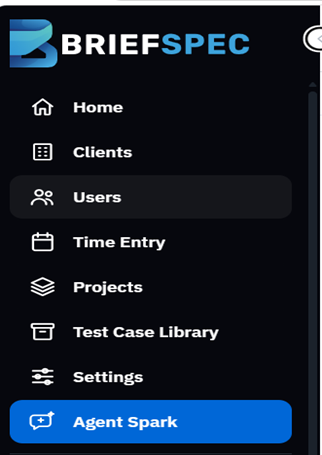
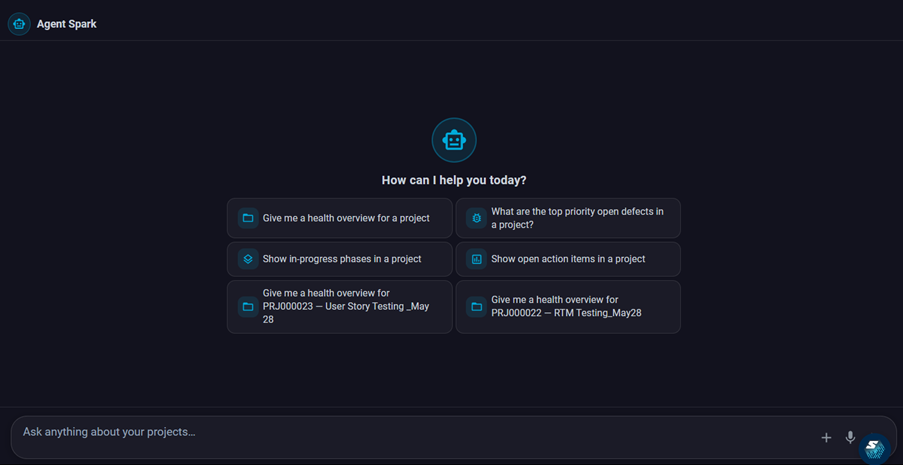
If this menu option is available for the user, clicking on it opens the AI chat screen. The screen shows a compact header, a chat area, suggested questions, and a message composer at the bottom.
If the menu option is unavailable that means that the feature is not available for the user role. In that case, contact the organization administrator or the BriefSpec support team.
Access and Permissions
Agent Spark access depends on three controls: Plan entitlement, Tenant AI enablement, and Role privilege. The feature must be included in the plan, enabled for the tenant, and part of the user’s role.
Plan Access
If the current plan does not include AI features, the screen displays an upgrade message.
Tenant AI Enablement
If AI features are disabled for the tenant, the screen displays a tenant access message asking the user to contact the administrator or support team.
Role Privilege
If the user’s role hides Agent Spark, the user cannot access the screen.
Project Access
The assistant only lists and uses projects that the user can access. Access is based on Project membership, Project role assignments, and Project view privileges.
Module Access
When a question needs module data, Agent Spark checks the corresponding module permission. For example, defects require Defects access, time entries require Time Entry access, service requests require Service Request access, and so on.
Understanding the Agent Spark Screen
Header
The header shows the Agent Spark title. It also provides actions such as clearing the current chat, exporting a conversation when messages are available, and switching chart rendering mode.
Chat Area
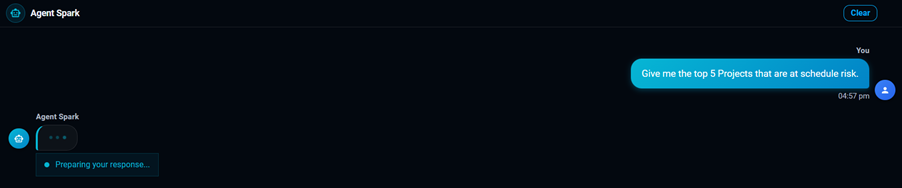
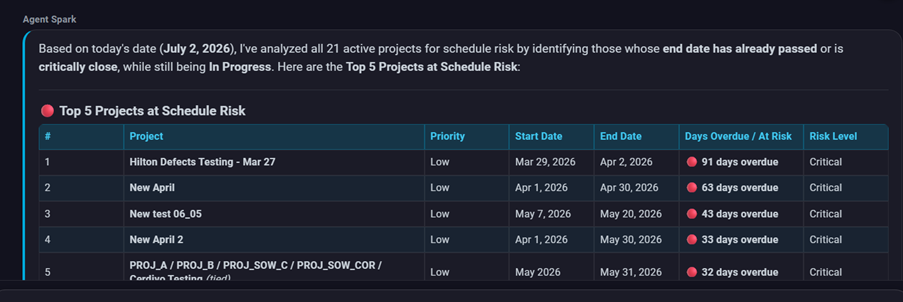
The main area displays the conversation. User messages appear as “You” and assistant messages appear as “Agent Spark”. Responses may include formatted text, tables, charts, and download cards.
Suggested Questions
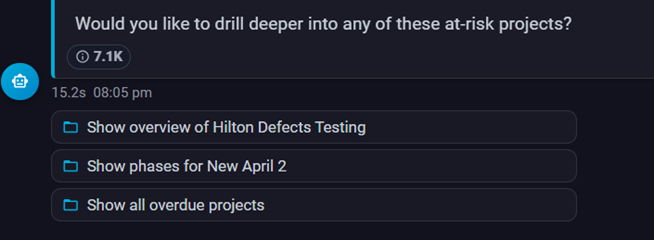
When the conversation is empty, Agent Spark displays suggested questions. These prompts help users start with common project-health, defect, phase, and action-item questions.
Message Composer
The composer at the bottom is where users type their question. Press Enter to send. Use Shift+Enter to add a new line. The send button is enabled when text is entered.

Voice Input
Where the browser supports speech recognition, the microphone button can be used to dictate a question. If voice input is not supported, the user is prompted to use a supported browser such as Chrome.
Stop / Cancel
When Agent Spark is generating a response, the send action changes to a stop/cancel action. Use it to cancel a long-running response.
Selecting Project Context
Many questions require a project. Users can either select a project before asking or mention a project ID in the question.
Project Picker
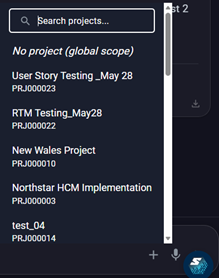
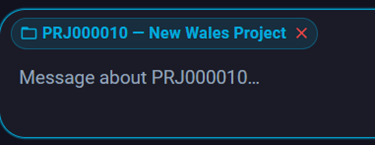
Click the plus button in the message composer to open the project picker. Search for a project and select it. The selected project appears as a project context chip above the message input.
Clear Project Context
Click the close icon on the project chip to clear the selected project and return to global scope.
Automatic Project Detection
If an answer uses one project, Agent Spark can update the project chip automatically. If a response covers multiple projects, the composer may show multiple project IDs as context.
No Project Selected
If the user asks a project-specific question without a project context, Agent Spark first finds the projects the user can access and asks the user to choose one from suggested options.
Project Access Questions
Users can ask questions such as “Do I have access to PRJ000025?”. Agent Spark checks the accessible project list and confirms whether the project is available to the user.

Asking Questions
Users can ask Agent Spark questions in normal language. The assistant decides whether live project data is needed, retrieves the relevant data, and presents the result in a readable format.
Examples of useful questions include:-
Give me a health overview for project PRJ000025
What are the top priority open defects in this project?
Show in-progress phases for this project.
Show open action items for this project.
Summarize requirements by status.
Which activities have the most hours logged?
Show high priority service requests.
Which test cycle has the most failed test cases?
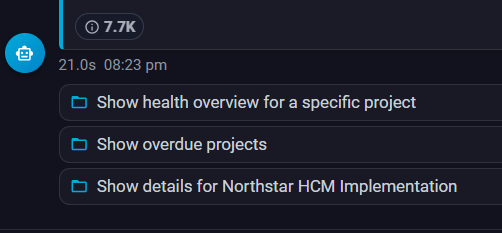
When Agent Spark needs more details, it asks a focused follow-up question and displays clickable options. Select an option to continue the conversation without retyping the full answer.
Supported Project Areas
Agent Spark can answer questions across several project modules, subject to role and project access.
Projects – list accessible projects and check project access.
Project Overview – summarize project health using counts and health indicators.
Plan – review plan tasks, status, owners, and overdue work where available.
Backlog / Requirements – query requirements, statuses, hierarchy, fit/gap, pillars, and epic/module breakdowns.
Phases – review phases, dates, status, completion, and phase requirement progress.
Phase Requirements – view build and review progress, assignees, dates, and requirement details.
Defects – summarize defects by status, priority, severity, assignee, and due dates.
Service Requests – summarize service request counts, priorities, statuses, and recent requests.
Action Items – review open, overdue, assigned, and priority action items.
Key Decisions – query decision log items, statuses, pillars, and modules.
RAID Logs – review risks, assumptions, issues, dependencies, priorities, and statuses.
Time Entry – summarize logged hours by user, activity, and date range.
Test Cycles and Test Cases – review test cycles, execution status, testers, assigned test cases, and project-level test case summaries.
Comments – read recent comments on supported items and, when permitted, manage comments after explicit confirmation.
Project Health Overview
A common use of Agent Spark is to ask for project health. The assistant gathers project data and presents a consolidated health snapshot.
Health responses may include traffic-light style indicators for areas such as Phases, Requirements, Defects, Action Items, Service Requests, Plan Tasks, Test Cycles, Test Executions, Key Decisions, and RAID Logs.
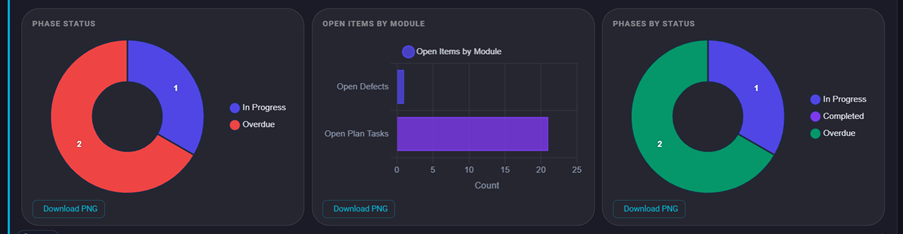
If a module(for example Phase) is not available for a project, Agent Spark explains that the module is not available instead of showing it in the health table. If a module is available but has no data, the assistant may mention that there is no data yet.
Charts and Visuals
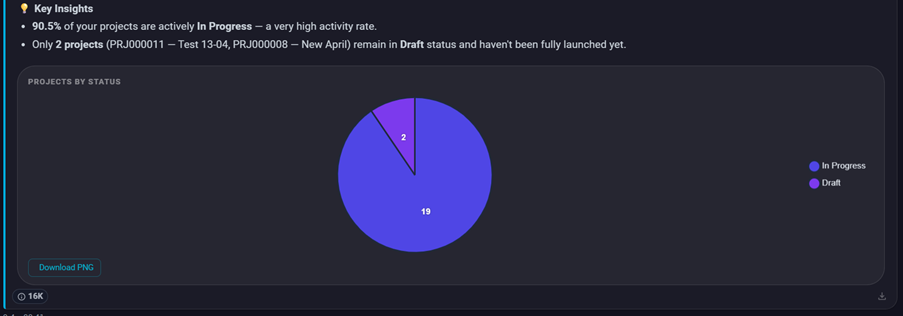
Agent Spark can create charts when a question asks for a chart, graph, visual, bar chart, doughnut chart, pie chart, line chart, or similar visual representation. It may also produce charts for suitable numerical summaries depending on the data and prompt rules.
Charts appear directly below the assistant response. The chart mode control in the header lets users switch between backend-generated PNG charts and interactive frontend charts.
Supported Chart Types
Supported chart types include bar, horizontal bar, stacked bar, doughnut, pie, and line charts.
Chart Downloads
When a chart is attached to an answer, the response can be exported to Word and the chart can be embedded in the exported document when available.
Downloading Responses and Exports
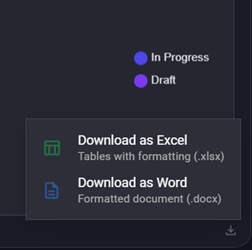
Assistant responses can be downloaded from the download icon shown on completed Agent Spark messages.
Download as Excel
Use this option when the response contains tables. The system creates a formatted Excel file.
Download as Word
Use this option to save the response as a formatted Word document. Charts can be included in Word exports when available.
Large Dataset Exports
When a data result is too large to show fully in chat, Agent Spark may provide an Excel download card. Click Download to save the details in an.xlsx file.
Conversation Management
Clear Chat
Click Clear to start a fresh chat in the current screen. This clears the visible conversation and resets the current session context.
Retry
If a response is interrupted or a connection error occurs, the message area may show a Retry option. Click Retry to send the last question again.
Suggested Follow-Ups
After many answers, Agent Spark provides short suggested follow-up questions. Click one of them to continue the analysis.
Limited Update Actions
Agent Spark is primarily a project data assistant. It is mostly read-only, but some limited actions may be available when the user explicitly asks for them and has the correct permissions.
Phase Requirement Build Status
Agent Spark can update the Build Status of phase requirements when explicitly requested. Supported values are Not Started, In Progress, and Build Complete. The parent Phase must be In Progress.
Phase Requirement Assignee
Agent Spark can update the Assignee details of a phase requirements when requested.
Comments
Agent Spark can read recent comments on supported items. Comment create, update, or delete actions require explicit user confirmation for own items and the required comment permissions. Attachments are not supported through this AI comment action.
Agent Spark does not create or delete project records such as projects, requirements, defects, service requests, action items, phases, test cycles, or time entries. Unsupported updates must be completed in the normal BriefSpec screens.
Export and File Requests
Users can ask for files in natural language, such as “export the open defects to Excel” or “download the defect list”. For supported datasets, Agent Spark generates a downloadable file instead of only displaying data in chat.
If a dataset is large, the assistant summarizes the data in chat and provides the Excel file through a download card. The card displays the export title and row count.
Security and Data Scope
Agent Spark uses authenticated tenant context. It does not access data from other tenants. Project and module data is filtered according to the signed-in user’s access.
The assistant avoids exposing internal database IDs and uses user-facing labels such as Phase, Requirement, Test Cycle, Key Decisions, and RAID Logs. If the user does not have access to a module or project, Agent Spark explains the access limitation in plain language.
Agent Spark is intended for BriefSpec project intelligence. If a user asks an unrelated question, the assistant redirects the conversation back to BriefSpec project data.
Common Messages
Agent Spark unavailable – shown when the user does not have permission to view the screen.
To access this feature, please upgrade your plan – shown when the current plan does not include AI features.
AI-powered features are currently disabled for this tenant – shown when tenant-level AI access is disabled.
Could not load projects – shown when the project picker cannot retrieve accessible projects.
You do not have permission to use the AI assistant – shown when the chat endpoint rejects the request due to access.
Connection error. Please check your network and try again – shown when the chat stream cannot be completed.
Export is still generating, please try in a moment – shown when a large Excel export is not ready yet.
Recommended Usage
Select a project before asking detailed project questions. This helps Agent Spark answer faster and reduces the need for clarification.
Ask specific questions when possible, such as “show open high-priority defects” or “summarize requirements by status”. Specific questions produce clearer answers.
Use follow-up questions to drill into the same project. Agent Spark remembers recent conversation context and can continue from the previous answer.
Use charts when comparing counts or trends. Use Excel export when the answer requires a full list of records.
Review AI-generated insights before taking action. Agent Spark summarizes live project data, but project owners should verify important decisions in the relevant BriefSpec module.