Clicking into a project opens the workspace — where the real work happens. Everything related to that project lives here: requirements, test cases, defects, traceability, governance, and AI tools. This guide walks through the layout so you know exactly where to find what you need.
Dashboard Overview
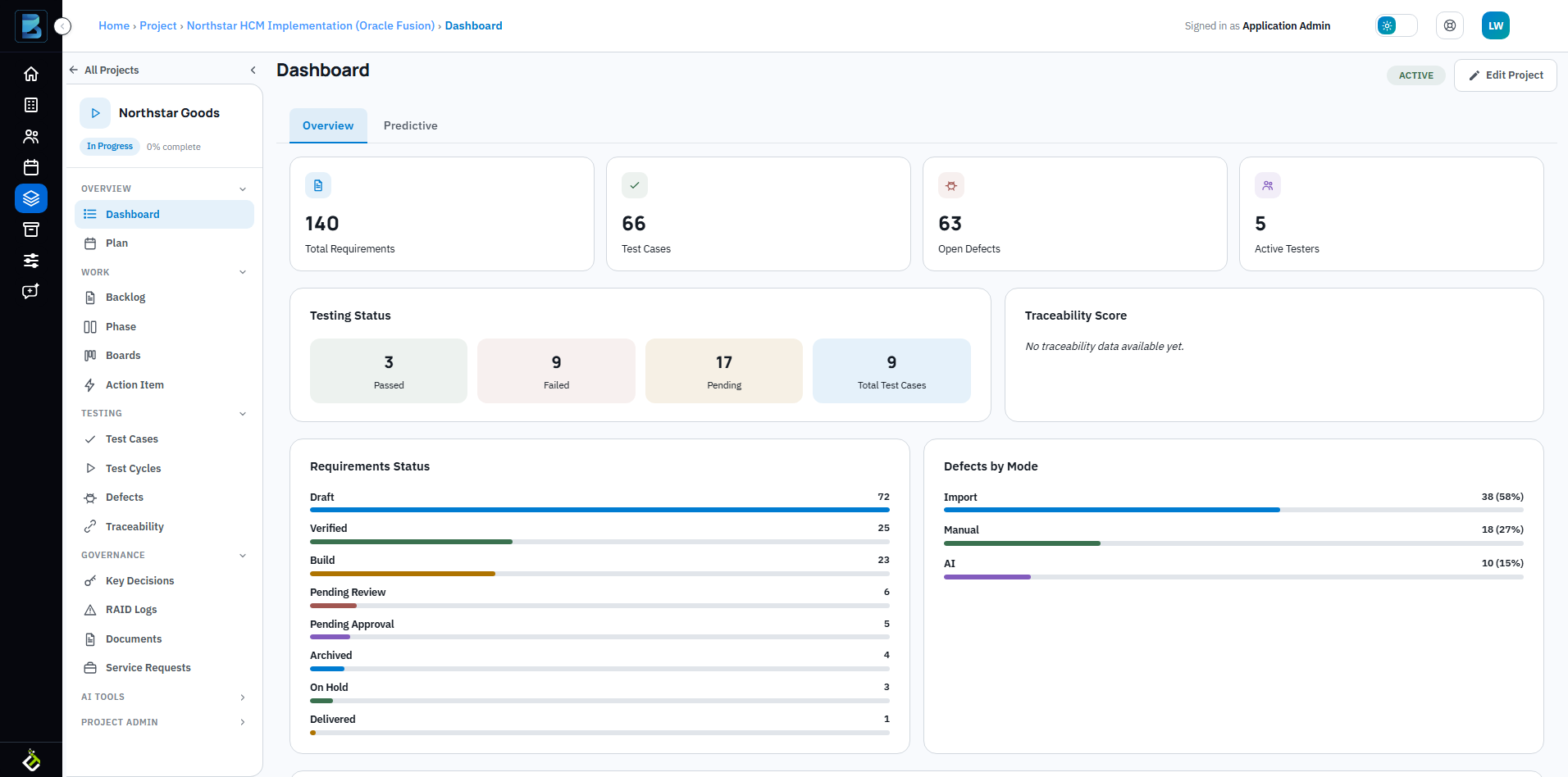
The main area starts with an at-a-glance dashboard:
- Summary cards — Total Requirements, Test Cases, Open Defects, and Active Testers. These numbers update in real time as work progresses.
- Testing Status — A breakdown of Passed, Failed, and Pending test cases.
- Traceability Score — Coverage mapping between requirements and test cases. Shows gaps so you know what still needs attention.
- Requirements Status — A bar chart showing where each requirement is in its lifecycle: Draft, Build, Verified, Pending Review, Delivered, and more.
- Defects by Mode — How defects were identified — Import, Manual entry, or AI detection.
- Phase Progress — Progress bars for each project phase showing completion percentage.
Workspace Sidebar Sections
The left sidebar organizes everything into collapsible sections:
Overview
- Dashboard — The metrics view described above.
- Plan — Project planning and timeline management.
Work
- Backlog — Your requirements hierarchy. Add, edit, and organize requirements here. Supports manual entry, Excel import, and AI-powered SOW ingestion.
- Phase — Organize work into phases or sprints.
- Boards — Kanban-style boards for visual workflow management.
- Action Items — Track follow-ups and to-dos within the project.
Testing
- Test Cases — Create, edit, and manage test cases. Link them to requirements for traceability.
- Test Cycles — Group test cases into execution cycles, assign testers, and track results.
- Defects — Log and track defects found during testing.
- Traceability — The RTM matrix showing requirements → test cases → defects mapping.
Governance
- Key Decisions — Record important project decisions with context and rationale.
- RAID Logs — Track Risks, Assumptions, Issues, and Dependencies.
- Documents — Project documentation and file storage.
- Service Requests — Manage service and change requests.
AI Tools & Project Admin
Collapsible sections at the bottom for AI-powered features and project-level administration settings.
Project Header
Above the dashboard, you’ll see the project name, client, status badge (Active/In Progress/Draft), and an Edit Project button. The breadcrumb trail lets you jump back to the Projects grid or Home at any time. An All Projects button in the top-left gives you a quick way to switch between projects without going back to the grid.