The Projects page is your portfolio command center — it shows every project in your tenant at a glance. From here you can create new projects, monitor status across your portfolio, and jump into any project’s workspace. This guide walks through each numbered section.
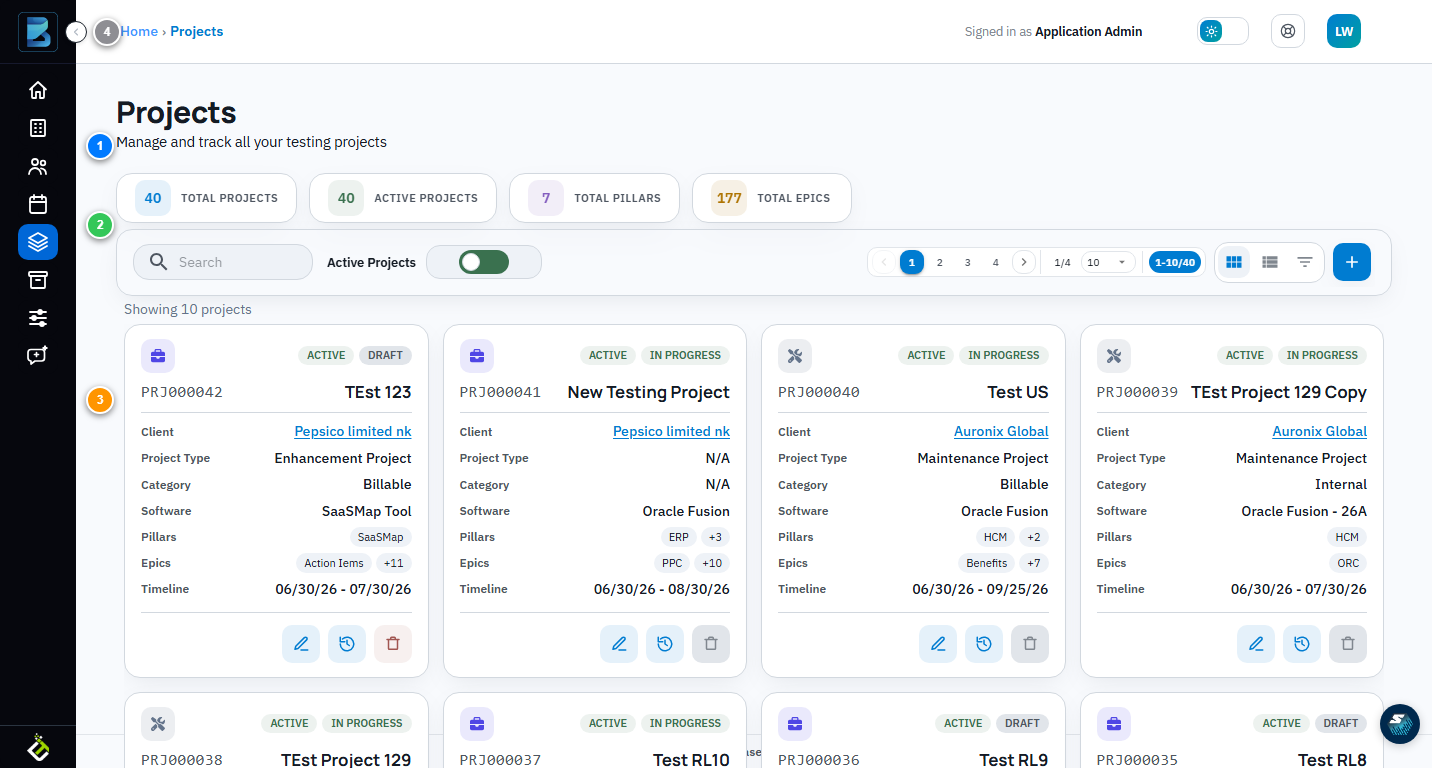
① Metric Cards
Four cards at the top give you portfolio-level stats: Total Projects, Active Projects, Total Pillars, and Total Epics. These update automatically as you create and manage projects.
② Search, Filter & View Controls
The toolbar below the metric cards lets you search projects by name, toggle between active and all projects, paginate through results, and switch between grid and list views. Use the Advance Filter button for more granular filtering.
③ Project Cards
Each card represents one project. It shows the project ID, name, client, type, category, software platform, pillars, epics, and timeline. The status badge (Active, In Progress, Draft) appears at the top. Click anywhere on a card to open that project’s workspace.
④ Card Actions
Every project card has action buttons at the bottom: Edit Project to modify details, Activity Stream to see recent changes, and Delete Project (available only for Draft, Completed, or Archived projects). The Add Project button at the top right creates a new project.