The sidebar is how you get around BriefSpec. It’s always visible on the left side of the screen, and every section of the platform is one click away. This guide covers what each numbered item does and when you’ll use it.
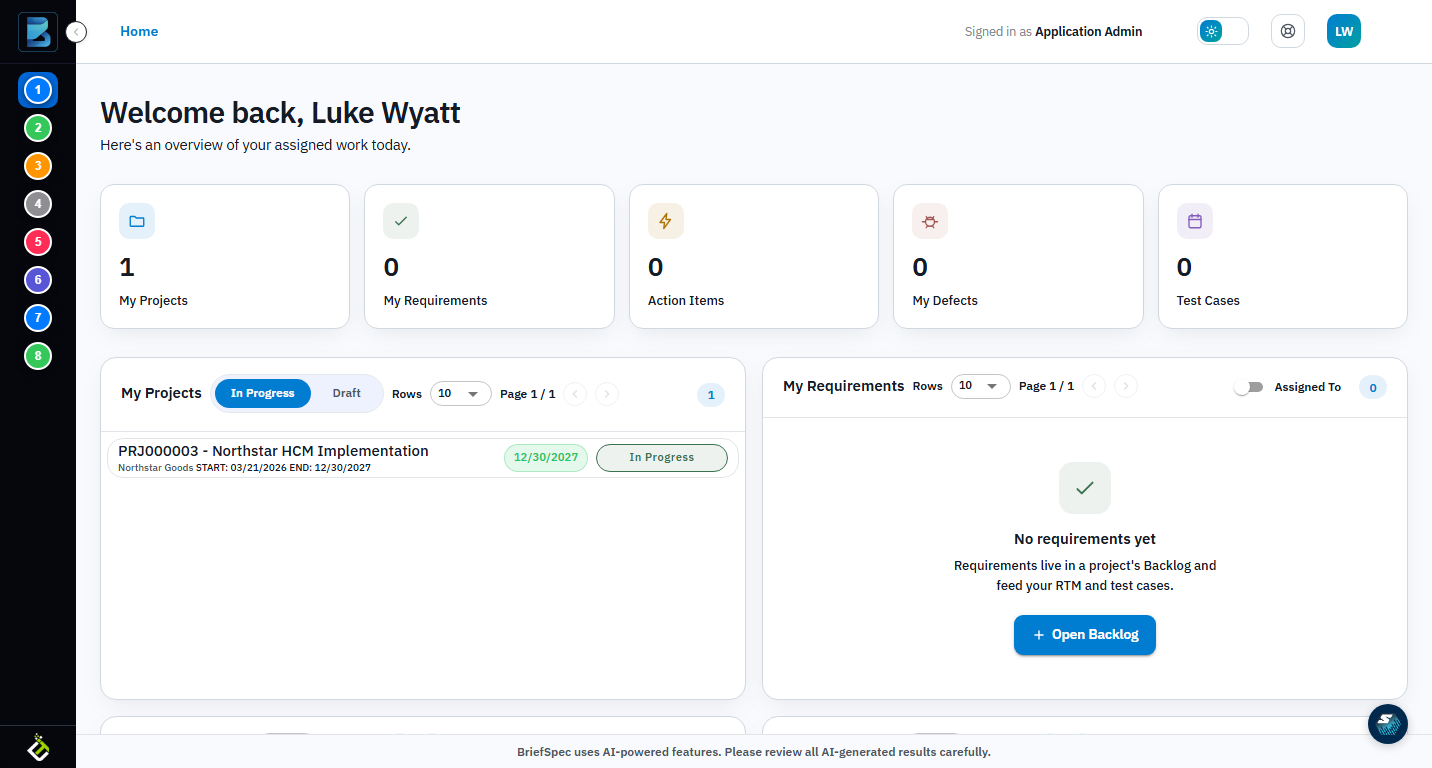
Sidebar Menu Items
From top to bottom, each numbered icon takes you to a different section:
- Home — Your personal dashboard. Shows your onboarding checklist, metric cards, and quick-access tables for projects, requirements, action items, and defects.
- Projects — The full projects grid. Create new projects, edit existing ones, or click into any project to open its workspace. This is where most of your work lives.
- Clients — Manage client organizations. Add new clients, edit details, and manage team members for each client. Projects must be assigned to a client.
- Users — Invite team members, assign roles, and manage permissions. Only visible if you have admin privileges.
- Time Entry — Log and track time against projects. Available on plans that include the time tracking module.
- Test Case Library — A shared repository of reusable test case templates. Create test cases here once and pull them into any project.
- Settings — Account preferences, subscription and billing, platform configuration, OpenAI key management, and tenant branding (logo and colors).
- Agent Spark — The AI-powered assistant. Generate test cases from requirements, analyze documents, and get help drafting content.
Collapsed vs Expanded
The sidebar starts collapsed — showing icons only. Hover over any icon to see a tooltip with its name. Click the expand arrow at the very top (next to the BriefSpec logo) to pin it open, which shows full text labels next to each icon. Collapse it again when you need more screen space.
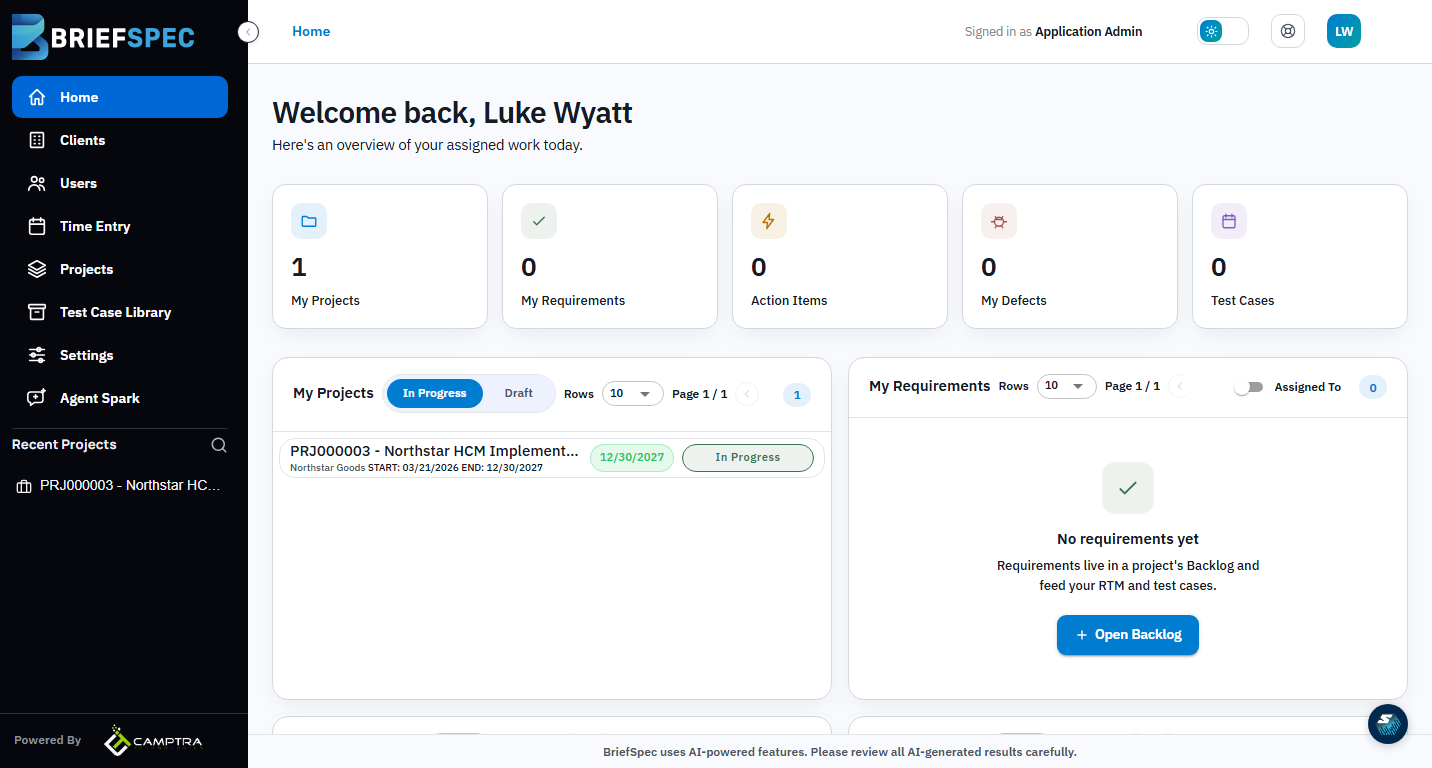
Recent Projects
Below the main navigation, the sidebar shows your most recently accessed projects. Click any one to jump directly into its workspace without going through the Projects grid. This is a fast shortcut when you’re bouncing between a few active projects throughout the day.
Inside a Project: The Workspace Sidebar
When you click into a project, a second panel opens with project-specific navigation organized into collapsible sections: OVERVIEW (Dashboard, Plan), WORK (Backlog, Phase, Boards, Action Items), TESTING (Test Cases, Test Cycles, Defects, Traceability), GOVERNANCE (Key Decisions, RAID Logs, Documents, Service Requests), AI TOOLS, and PROJECT ADMIN.